
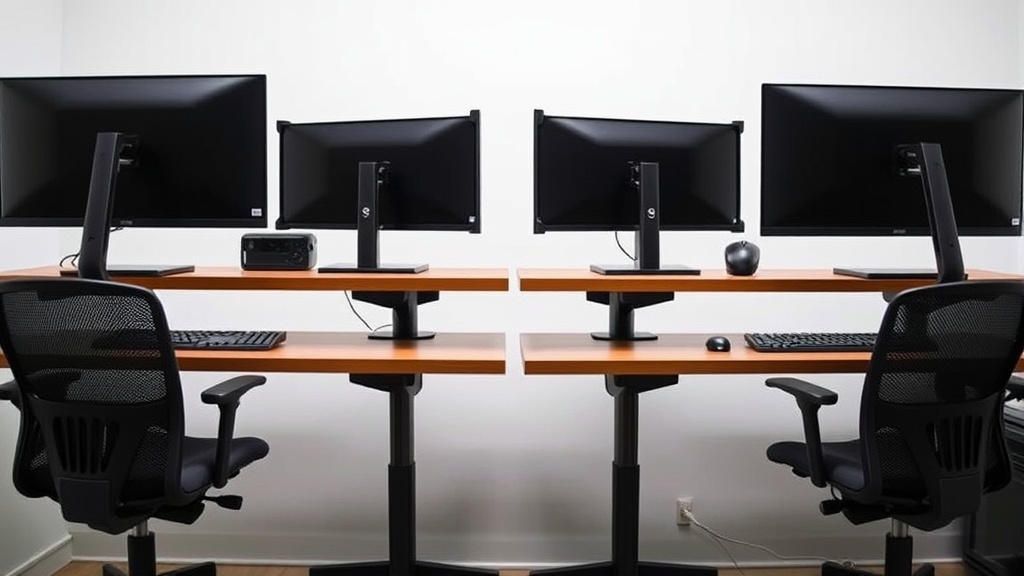
Top Monitor Setup Tips for an Ergonomic Home Workspace
If you spend long hours at your desk, you may be struggling with neck pain, eye strain, or poor posture despite having an ergonomic chair or desk. A big part of these discomforts often comes from how your monitor is set up. Even slight misalignments in height, distance, or angle can cause fatigue and long-term health issues. This guide covers essential monitor setup tips grounded in ergonomic principles, focusing on measurable fit and realistic comfort for 8+ hour workdays.
Understanding Ergonomic Monitor Setup
An ergonomic monitor setup is more than just placing the screen in front of you. It involves aligning the monitor to your natural posture and viewing preferences to minimize strain on your neck, eyes, and shoulders. Key factors include:
- Height: Monitor should align roughly with your eye level to avoid tilting the head up or down.
- Distance: Position the monitor far enough to prevent eye strain but close enough to read text comfortably.
- Angle and Alignment: The monitor’s tilt and rotation should reduce glare and match your line of sight.
- Dual Monitor Configuration: Proper arrangement if you use more than one screen, avoiding excessive head turning.
Getting these elements right matters because you are engaging with your setup for multiple hours daily, more akin to a marathon than a sprint. Small adjustments based on your body mechanics will pay off in reduced discomfort and better overall focus.
See also: How to Set Up a Home Office for Back Pain Prevention
Step-By-Step Guide to Setting Up Your Monitor Ergonomically
1. Measure Your Eye Height and Desk Height
Start by sitting comfortably in your chair (ideally one with lumbar adjustability, armrests with 4D travel, and seat depth adjusted for your thigh length). Measure from the floor to your eye level. Also, note your desk height. This baseline determines the vertical position of your monitor.
2. Adjust Monitor Height to Eye Level or Slightly Below
The top third of your monitor screen should be at or slightly below eye level so your gaze naturally falls slightly downward when viewing the middle of the screen. This reduces neck extension and keeps your cervical spine neutral. Use a monitor stand or adjustable arm based on your measurements.
3. Maintain an Optimal Viewing Distance (20–30 inches)
Place your monitor about an arm’s length away, generally between 20 and 30 inches (50-75 cm), depending on your vision. Too close leads to eye strain and potential nearsightedness; too far means leaning forward and poor posture.
4. Tilt and Angle for Minimal Glare and Comfort
Tilt the monitor back about 10–20 degrees to match the natural downward gaze and minimize overhead glare. Also, angle the screen perpendicular to any windows or light sources to prevent reflection.
5. Use Dual or Multiple Monitors Wisely
If you have dual monitors, position the primary monitor directly in front of you. Place a secondary monitor adjacent at the same height and angle, forming a shallow “V” so you don’t have to turn your head excessively. For equal heights and frequent use of both monitors, center them both in front and rotate slightly.
6. Consider Screen Size and Resolution
A larger monitor or higher resolution reduces the need to lean in or squint but be careful to adjust seat depth and chair adjustments accordingly. The goal is to comfortably see text and images without craning your neck or leaning forward.
Comparing Common Monitor Setup Features and Their Ergonomic Impact
| Feature | Optimal Setup | Value for Long Work Hours | Common Mistakes | Example Impact |
|---|---|---|---|---|
| Height Adjustment | Top third of screen at eye level | Maintains neutral neck position; less fatigue | Monitor too high or low | Neck strain, headaches |
| Viewing Distance | 20–30 inches (arm’s length) | Prevents eye strain and forward lean | Too close or too far | Eye fatigue, poor posture |
| Tilt Angle | 10° to 20° backward tilt | Reduces glare and neck flexion | Flat or tilted forward | Glare, awkward neck angles |
| Dual Monitor Alignment | Primary in center, secondary in slight V | Minimizes constant head turning | Monitors misaligned or uneven heights | Shoulder pain, reduced productivity |
| Screen Size & Resolution | Large enough for comfortable reading | Decreases squinting and leaning forward | Small screen or low resolution | Eye strain, leaning forward |
Why Measurement and Pressure Mapping Matter More Than Marketing
While many products boast “ergonomic” features, real ergonomic fit is about measurable, adjustable parameters tailored to your body, not marketing terms. For example, “lumbar support” must be adjustable over a significant range of spinal heights, just like a monitor’s height should be adjustable to your eye-level range.
Pressure mapping—often used for chair fit—can be conceptually extended to monitor setups by considering how your neck/shoulders feel during prolonged use and adjusting the monitor parameters until discomfort decreases. This pragmatic approach focuses on what 8+ hours/day feel like rather than appealing buzzwords.
Additional Tips for an Ergonomic Home Workspace
- Lighting: Use indirect lighting to minimize glare.
- Breaks: Follow the 20-20-20 rule—every 20 minutes look at something 20 feet away for 20 seconds.
- Desk Organization: Keep frequently used items within reach to avoid twisting.
- Chair Fit: Ensure your chair’s seat depth and armrests complement your monitor setup for overall posture balance.
Frequently Asked Questions
Q: How high should my monitor be relative to my eyes?
A: The top third of the screen should be at or slightly below eye level to encourage a natural downward gaze and keep your neck in a neutral position.
Q: Is it better to have a single large monitor or dual monitors?
A: Both have pros and cons. A single large monitor minimizes head movement, while dual monitors increase screen real estate. Proper alignment in either case is critical to reduce discomfort.
Q: How do I know if my monitor is causing eye strain?
A: Signs include frequent headaches, blurred vision, dryness, or difficulty focusing. Adjusting brightness, distance, and position often helps, but persistent issues might require an eye exam.
By following these practical, well-measured guidelines, you can create a home monitor setup that supports healthy posture and reduces fatigue, turning your workspace into a more comfortable and productive environment for the long haul.
Related reading
- Tips for Maintaining Good Posture While Working from Home
- Tips for Setting Up an Ergonomic Workspace with Chairwise Products
- Tips for Organizing Your Home Office Ergonomically
- How to Design an Ergonomic Workspace for Remote Employees
- How to Set Up an Ergonomic Standing Desk at Home
Our picks worth a closer look
- 750lbs Big and Tall Office Chair with Wide Thick Seat Cushion,Ergonomic Mesh OffCheck on Amazon → — see current price and specs.
- Autonomous ErgoChair Pro Ergonomic Office ChairCheck on Amazon → — see current price and specs.
- Big and Tall Office Desk Chair 500lbs, Ergonomic Heavy Duty Mesh Desk Chair, ExeCheck on Amazon → — see current price and specs.
- Ergonomic Office Chair, High Back Desk Chair with Flip-up Arms, 300 LBS Mesh ComCheck on Amazon → — see current price and specs.
- FLEXISPOT 32’ Standing Desk Converter, Space-Saving Desktop Riser for Home OfficCheck on Amazon → — see current price and specs.