Many desk workers struggle with persistent back pain after long hours at their home office setup. The culprit is often subtle misalignments that accumulate over time—poor chair fit, inadequate lumbar support, or a desk height that strains your posture. Setting up a home workspace optimized to prevent back pain requires intentional adjustments beyond just buying an “ergonomic chair.” This guide walks you through practical steps to configure your home office for comfort and spinal health, grounded in measurable fit and real-world use rather than marketing hype.
Step 1: Choose a Chair That Truly Fits Your Body
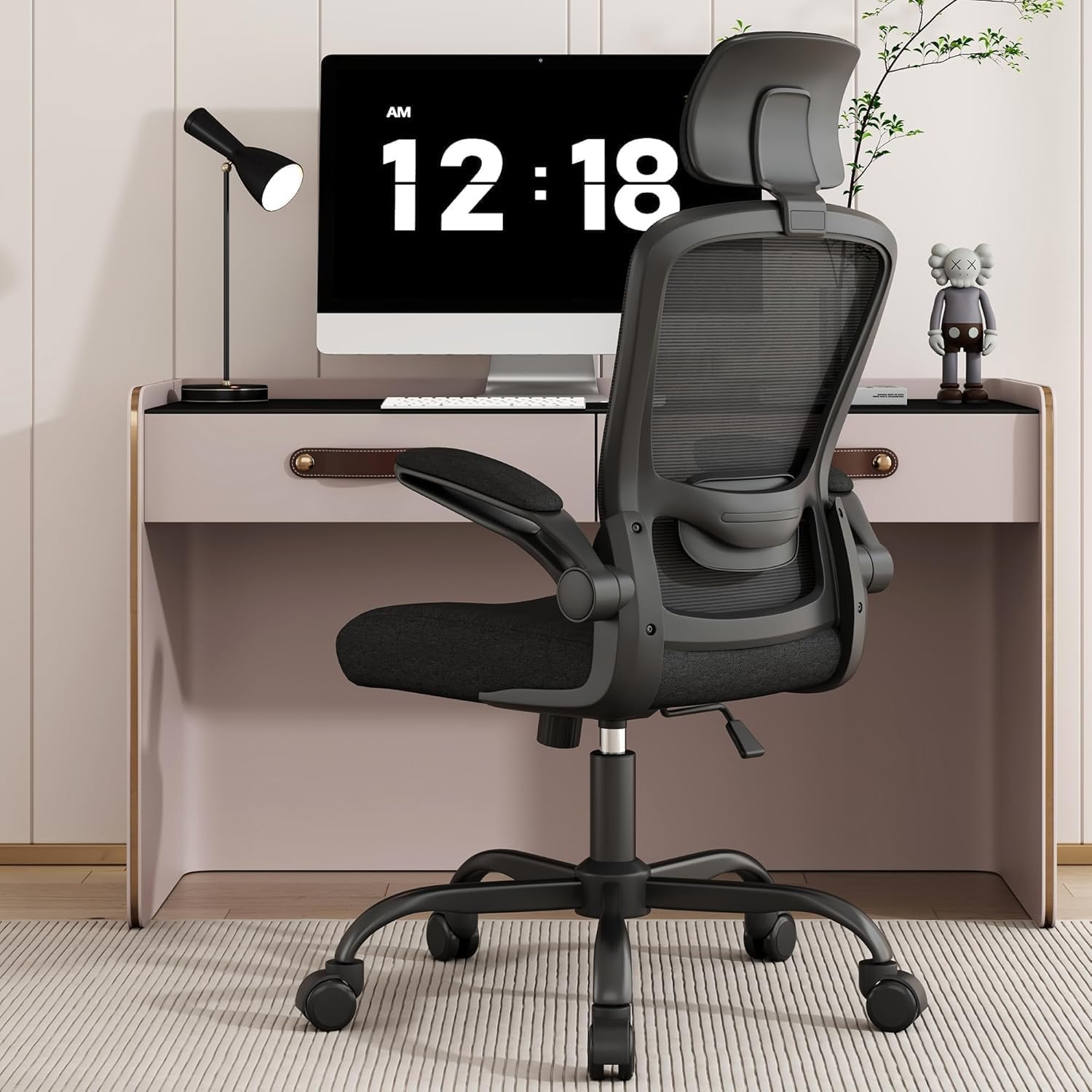
Ergonomic chairs sound great in ads, but the truth is that the details of fit— seat depth, lumbar adjustability, and armrest travel—will determine how well your chair protects your back over 8+ hours per day.
- Seat Depth: You want about 2-4 inches (5-10 cm) of space between the back of your knees and the front edge of the seat when sitting back fully. Too long and the seat cuts into your knees, disrupting circulation. Too shallow and you don’t get full thigh support, increasing pressure on your lower back.
- Lumbar Adjustment: Look for at least moderate vertical and depth adjustment to fit the natural curve of your lumbar spine. You want the lumbar support to fill the small inward curve above your beltline without pushing you too far forward.
- Armrest 4D Travel: Armrests should adjust in height, width, depth (forward/backward), and pivot angle. This versatility helps keep your shoulders relaxed and elbows properly supported, preventing upper back tightness.
Many chairs advertise these features but don’t deliver full ranges of adjustment. When shopping, try to sit in the chair for at least 15 minutes in a store or check return policies when buying online.
See also: Top Monitor Setup Tips for an Ergonomic Home Workspace
Step 2: Monitor and Adjust Your Desk Height for Neutral Posture
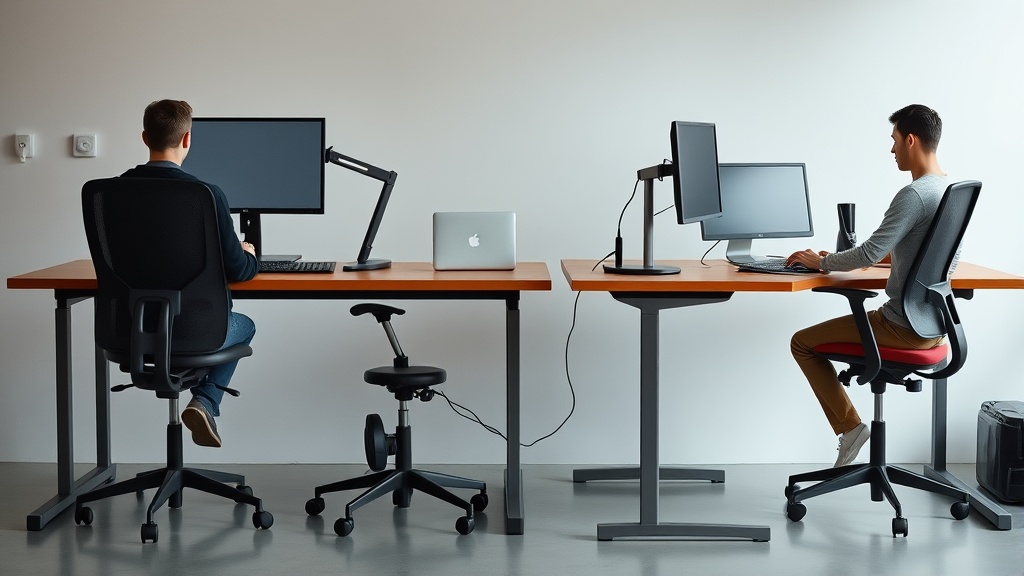
Your desk height plays a critical role in spinal alignment and overall comfort. Aim for a configuration where:
- Your elbows bend roughly at 90 degrees with your forearms parallel to the floor when typing.
- Your shoulders stay relaxed, not shrugged or hunched.
- Your wrists remain straight and not angled up or down when on your keyboard and mouse.
Standard desk heights (around 29-30 inches) may not fit you perfectly. Adjustable desks or desk converters allow customization that can make a big difference. For those who use laptops, external keyboards and stands help get the screen to eye level, matching the right desk and arm support heights.
Step 3: Position Your Monitor to Protect Your Neck
Neck strain often accompanies back pain when your monitor is too low, too high, or too far away.
- Height: The top third of the screen should be at or just below eye level.
- Distance: About an arm’s length away (roughly 20-30 inches or 50-75 cm), depending on your vision and screen size.
- Angle: The monitor should be tilted slightly upward (10-20 degrees) if your desk/walls allow.
Misalignment causes you to lean forward, slouch, or crane your neck up and down—all of which stress your spine over time.
Step 4: Use Pressure-Mapping or Sensory Feedback to Optimize Seating
Pressure-mapping technology used in professional ergonomic assessments can help identify hotspots—areas where excess pressure builds under your thighs or buttocks, causing discomfort and fatigue. While professional tools might be costly, consumer-grade seat cushions with layered gels or memory foam that promote even pressure distribution can help.
Try a simple test: sit on your chair and pay attention to where you start feeling numbness or pain after 15-30 minutes. These uncomfortable spots suggest a need for seat cushion modification, seat depth change, or even a different chair.
Step 5: Incorporate Movement and Microbreaks
No perfect chair or desk setup eliminates the need to move. Sitting for hours immobilizes your hip flexors and core, leading to stiffness and back pain.
Follow the 20-8-2 rule for a start:
- Every 20 minutes, refocus your eyes from the screen for 20 seconds.
- Every 8 minutes, adjust your posture slightly or do a small stretch.
- Every 2 hours, stand up and walk for at least 5 minutes.
Movement helps reset your posture and reduces the cumulative strain on spinal structures.
Summary Table: Key Ergonomic Features vs. Their Impact on Back Pain Prevention
| Feature | What to Look For | Impact on Comfort and Back Pain | Common Pitfalls |
|---|---|---|---|
| Seat Depth | Adjustable 2-4 inches (5-10 cm) clearance | Prevents pressure on knees, promotes circulation | Fixed seat depth that is too deep or shallow |
| Lumbar Support | Adjustable vertical and depth | Maintains natural lumbar curve, reduces lower back strain | Rigid or no lumbar adjustment |
| Armrests (4D Travel) | Height, width, depth, pivot adjustable | Supports arms, reduces shoulder and neck tension | Fixed or only height adjustable armrests |
| Desk Height | Adjustable/compatible with your body size | Enables neutral arm and shoulder positioning | Standard height desks without adjustments |
| Monitor Position | Top 1/3 screen at eye level, arm’s length distance | Reduces neck strain and forward head posture | Monitor too high, too low, or too close/far |
| Pressure Distribution | Cushioning or pressure-mapping feedback | Long-term comfort, prevents numbness and fatigue | Hard seats or uneven pressure points |
| Movement Breaks | Scheduled posture shifts and walks | Reduces static loading of spine, promotes circulation | Prolonged static posture without breaks |
Frequently Asked Questions
Q: How important is adjustable lumbar support compared to basic lower back pillows?
A: Adjustable lumbar support that can be positioned to fit your natural curve is generally more effective than generic lower back pillows, which can slip or push incorrectly and cause more harm than good over long sessions.
Q: Can a standing desk eliminate back pain completely?
A: Standing desks help by encouraging movement and changing postures but don’t eliminate back pain on their own. Proper adjustment, anti-fatigue mats, and alternating between sitting and standing is necessary.
Q: How do I know if my chair fits me well beyond just sitting in it briefly?
A: Test your chair over a typical workday or for at least a few hours. Look out for pressure points, shoulder tightness, and whether your feet rest flat with support under thighs. Chairs that feel good for 15 minutes may still cause pain after 8 hours.
Configuring your home office with these measured, practical considerations in mind sets the foundation for a pain-free workday. Beyond the marketing buzz, fit, adjustability, and how your body feels after hours of use are the true measures of ergonomic success. Start with these steps, listen to your body, and make incremental improvements for lasting spinal health.