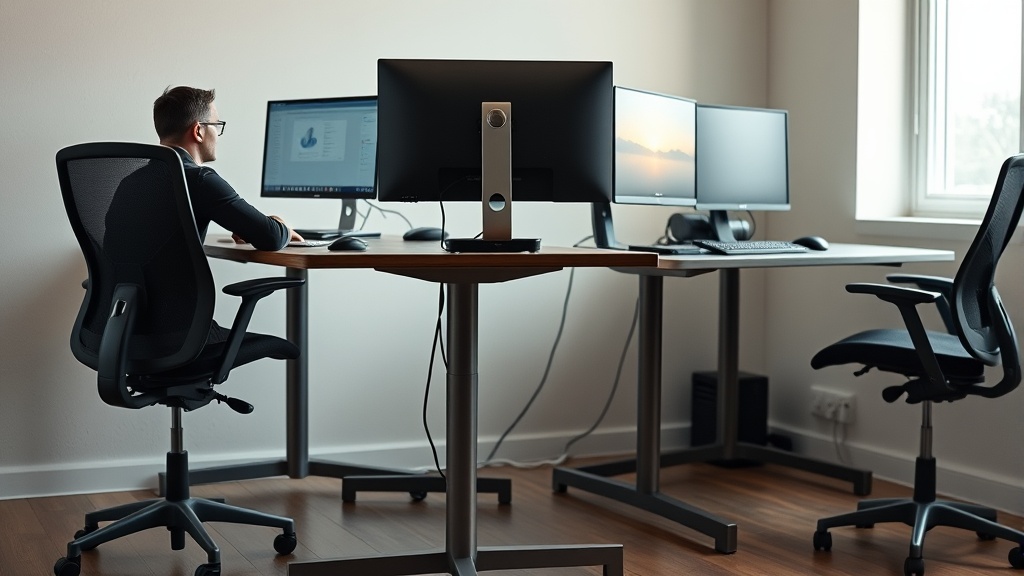
Organizing a home office can quickly become overwhelming—especially when your primary goal is more than tidiness: it’s creating a workspace that supports long hours of comfortable, productive work without causing aches or fatigue. Many people find they rush to buy ergonomic chairs or desks but neglect how proper setup and thoughtful organization affect their posture and comfort throughout the workday. This guide offers practical, actionable tips to organize your home office with ergonomics in mind, so you can work smarter, not just cleaner.
Understanding Ergonomic Organization: What It Is and Why It Matters
Ergonomic organization means arranging your workspace so that all elements—from chair and desk to monitor position and peripherals—support healthy posture and reduce strain. Simply decluttering is not enough. Without considering your body’s alignment, even a neat desk can lead to discomfort or injury.
Poor organization can cause you to reach awkwardly for items, twist your neck or back repetitively, or sit in a cramped posture. Over an 8-hour workday, these small stressors add up. An ergonomically organized home office aims to align your body properly with all workspace components, adjusting for your unique dimensions and work habits.
How to Organize Your Home Office Ergonomically: Step-by-Step
1. Choose the Right Chair and Adjust It Thoughtfully
The cornerstone of ergonomic organization is your chair. A well-made ergonomic chair will have:
- Adjustable seat depth (measured seat pan length): This lets you position the seat so your back fully contacts the lumbar support while leaving about 2-4 inches clearance between the back of your knees and the seat edge.
- Lumbar support with adjustability: Look for chairs where you can adjust the height and firmness of the lumbar support to fit the natural curve of your lower back.
- 4D adjustable armrests: Armrests should be adjustable in height, width, depth (forward/back), and angle to properly support your forearms without shoulder strain.
Directional comfort here is not “one size fits all.” Spend time fine-tuning these adjustments after you set up your workspace. Too often, buyers rely solely on the chair’s marketing features, which don’t guarantee a good fit for your body.
2. Desk Height and Setup
Your desk height directly affects the alignment of your wrists, shoulders, and neck.
- Ideal desk height is one where, when seated, your elbows form a roughly 90-degree angle with your arms close to your body.
- When using a keyboard, your wrists should remain straight (not bent up or down).
- If your desk is too high, use an adjustable keyboard tray or invest in a sit-stand desk to alternate postures.
- If too low, raise your chair but use a footrest to maintain proper leg positioning.
3. Position Your Monitor Correctly
Monitor placement is frequently overlooked but vital:
- The top of your monitor screen should be at or just below your natural eye level. This prevents neck extension or flexion over long periods.
- The screen distance from your eyes should be about an arm’s length (~20-30 inches), reducing eye strain.
- Tilt the monitor slightly upward (~10-20 degrees) if possible, to maintain neutral neck posture.
4. Manage Desk Clutter and Reach Zones
Efficient organization isn’t just about cleanliness—it’s about reducing repetitive awkward postures.
- Create ‘reach zones’: Items you use regularly (phone, notebooks, frequently referenced papers) should be within easy arm’s reach without leaning or twisting.
- Items rarely used can go to the periphery or stored elsewhere.
- Use vertical storage like shelves or wall-mounted organizers to clear the desktop without losing accessibility.
- Keep cables and chargers tidy to avoid tangled messes that encourage awkward reaching.
5. Use Task Lighting Wisely
Lighting plays a supporting role in ergonomics:
- Use adjustable task lighting to avoid glare on screens and reduce eye strain.
- Position lights to illuminate documents without casting shadows onto the keyboard or screen.
6. Consider Pressure Mapping and Support Accessories
For high-use chairs, consider pressure mapping solutions offered by third parties or professionals. This technology helps identify areas of excessive pressure on your seat or back, guiding better cushion choices or chair adjustments.
Additional accessories like footrests, monitor risers, or keyboard stands can complement your ergonomic setup, but their effectiveness depends on proper sizing and placement.
Ergonomic Features Comparison Table
| Feature | Why It Matters | What to Look For | Common Mistakes |
|---|---|---|---|
| Seat Depth Adjustment | Supports thigh length, prevents pressure on knee behind | Adjustable range around 15-20 inches based on body size | Using a fixed depth that’s too long or short |
| Lumbar Support Adjustability | Maintains natural spinal curve to avoid back pain | Height and firmness adjustable support | Rigid backs with no customization |
| 4D Armrest Adjustment | Reduces shoulder and neck strain | Can move up/down, left/right, forward/back, and pivot | Fixed armrests forcing awkward postures |
| Monitor Positioning | Prevents neck flexion/extension and eye strain | Height correct for eye level; adjustable tilt | Monitor too low or too close |
| Desk Height | Keeps wrists neutral and elbows at 90° | Adjustable or optimized height for seated position | Desk too high or too low leading to raised shoulders or wrist extension |
| Reach Zones | Minimizes twisting and stretching | Regular use items within arm’s reach | Clutter, forcing twisting or leaning |
Common Pitfalls and How to Avoid Them
- Relying on marketing buzzwords: Ergonomic claims do not guarantee comfort for your body shape. Test and adjust furniture instead of assuming features suffice.
- Neglecting individual measurements: Chair seat depth, lumbar height, armrest adjustability, and monitor height should be tailored to your body.
- Ignoring dynamic sitting: Standing up and moving every hour is key, regardless of how ergonomic your chair is.
- Overstuffing the desk: Excess clutter extends reach and forces forward leaning.
- Poor lighting: Eye strain exacerbates fatigue and discomfort.
Final Thoughts
Organizing your home office ergonomically is about more than buying a chair or standing desk—it’s about thoughtful, body-conscious arrangement. Combining adjusted furniture, well-planned reach zones, correct screen positioning, and appropriate lighting creates a workspace designed for long-term comfort and productivity. Remember, measurement and adjustment trump marketing every time.
Frequently Asked Questions
Q: How important is seat depth compared to lumbar support?
A: Both matter critically; seat depth ensures thigh support without pressure behind the knee, while lumbar support maintains spinal curves. Having good lumbar support but an incorrect seat depth can still cause discomfort, so balance adjustments for both.
Q: Can a standing desk replace the need for an ergonomic chair?
A: Standing desks help vary your posture and reduce seated hours but do not eliminate the need for ergonomic seating. When seated, a good chair with proper adjustments remains essential.
Q: How often should I adjust my ergonomic setup?
A: Regularly. Your body changes throughout the day and over months. Reassess your chair settings and monitor height after initial setup and whenever you feel discomfort or start new tasks. Movement breaks every 30-60 minutes are also beneficial.
