
How to Select the Perfect Monitor Arm for Dual Screens

By Nate Frost · Senior Editor
Published May 12, 2026 · Last reviewed May 12, 2026

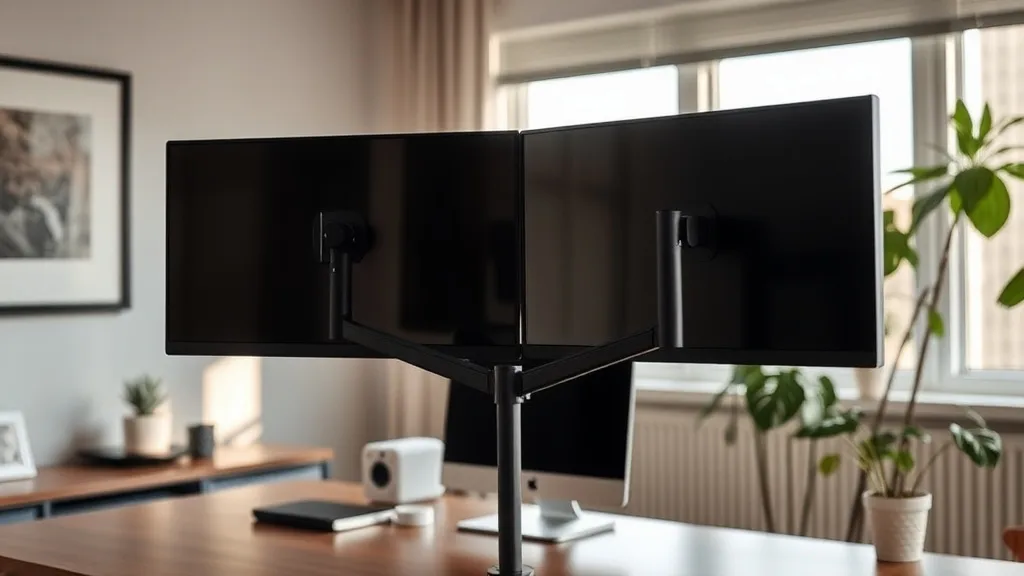
If you work with dual monitors, you know how tricky it can be to position them comfortably for hours on end. The wrong setup can cause neck strain, eye fatigue, and a cramped desk space that limits your productivity. A good dual monitor arm can solve these problems by offering adjustability and ergonomic benefits, but choosing the right one requires understanding key features like the arm’s reach, adjustability range, and mounting options. Here’s how to select the perfect monitor arm for your dual screens, so you can work comfortably and efficiently throughout your day.
1. Understand Your Workspace and Monitor Specs
Before diving into product specs, measure both your desk space and your monitors:
- Desk depth and width: This determines how far the monitor arm needs to extend and whether clamp or grommet mounting fits your setup.
- Monitor size and weight: Most arms list maximum supported weight and screen size. This impacts stability and safe operation.
- Available mounting points: Check if your monitors have VESA-compatible mounting holes (usually 75x75mm or 100x100mm).
- Desk thickness: If planning to clamp the arm, know the maximum thickness your desk can be for secure mounting.
Measure twice to avoid disappointment later.
See also: Best Chairwise Monitor Arms for Multi-Monitor Workstations
2. Prioritize Ergonomic Adjustability
Ergonomics means the arm must allow a comfortable, natural position for your eyes, neck, shoulders, and arms. Key adjustability features:
- Height Adjustment Range: Your arm should raise and lower monitors well above and below your natural eye level, ideally about 13-20 inches of total travel. This lets you find that “neutral” head position without strain.
- Tilt and Swivel: Ability to tilt monitor vertically (+/- 45 degrees) and swivel horizontally helps align screen angles and reduce reflections.
- Rotation (Pivot): Allows switching between landscape and portrait orientation. This is great for coding, reading long documents, or referencing designs.
- Arm Reach and Extension: The arm’s horizontal reach defines how far screens can be positioned away/toward you, essential if you want dual monitors side-by-side or staggered.
- Independent Adjustment for Each Screen: Dual monitor arms should have separate joints to move each monitor independently for asymmetrical setups.
Ergonomic adjustment is not just a sales buzzword—it directly impacts how you’ll feel after 8+ hours daily.
3. Choose Between Different Mounting Styles
Monitor arms offer three common mounting types:
| Mount Type | Description | Pros | Cons | Best For |
|---|---|---|---|---|
| Clamp Mount | Bolts onto desk edge, holds under the surface | Easy installation, no desk drilling needed | Requires desk edge access and suitable desk thickness | Most desks, renters, those avoiding damage |
| Grommet Mount | Secured via a hole in desk surface | Very stable, clean look | Requires desk hole drilling or existing grommet | Custom desks, heavy monitors |
| Wall Mount | Fixed to wall brackets | Frees desk space completely | Requires wall studs and installation effort | Space saving, permanent setups |
Consider desk material and your office arrangement when selecting mount style.
4. Evaluate Load Capacity and Compatibility
Overloading your monitor arm can cause wobble, potential damage, and frustrating experience. Check both monitors’ weights and pick an arm that supports them with some headroom (10-20% over your total weight). Also confirm compatibility with your monitor’s mounting hole pattern—most arms support standard VESA, but ultrawide and curved displays may require special solutions.
5. Look for Smooth and Balanced Movement
After fit and capacity, usability comes down to the arm’s motion:
- Gas Spring vs. Spring Tension: Gas spring arms offer smooth, effortless adjustment but cost more. Spring tension systems may feel stiff or loose over time.
- Adjustable Tension: Some arms let you tune how hard it is to move your monitors, accommodating heavier or lighter screens.
- Cable Management: Integrated clips or channels reduce clutter and prevent cables getting kinked or pulled when repositioning.
Try to find reviews emphasizing real-world adjustability rather than marketing slickness—working 8 hours daily reveals true performance.
6. Confirm the Number of Screens Supported and Flexibility
While this guide focuses on dual-monitor arms, some models support three or even four screens. But for most desk workers, two screens with independently adjustable arms are best:
- Avoid mono arms that only hold one screen plus a monitor tray.
- Check if arms can move past each other to avoid collision.
- Verify if each arm has sufficient reach and freedom to position screens optimally.
7. Compare Features with Your Priorities in a Table
| Feature | Why It Matters | Ideal Specs/Considerations |
|---|---|---|
| Weight Capacity | Stability & safety | Total monitor weight + 10–20% margin |
| Height Adjustment Range | Neck & eye comfort | At least 13–20 inches total vertical travel |
| Arm Reach (Extension) | Desk depth optimization | Enough reach for side-by-side or staggered setup |
| Tilt/Swivel/Pivot | Screen angle customization | Tilt ±45°, swivel 90°+, pivot 90°+ |
| Mount Type | Installation ease & desk protection | Clamp for easy, grommet for stability |
| Adjustability (Tension) | Smoothness & longevity | Gas spring with adjustable tension ideal |
| Cable Management | Tidiness & cable lifespan | Integrated clips or channels recommended |
| Independent Arm Movement | Flexibility for awkward desk setups | Full freedom per arm to accommodate layout |
Use this as a checklist to rank options.
8. Beware of Common Pitfalls When Buying Monitor Arms
- Ignoring Desk Thickness: Clamp mounts won’t fit thick or uneven desks.
- Underestimating Monitor Weight: Don’t rely only on screen size; weigh monitors if possible.
- Overlooking Adjustment Range: A fixed-height or low-adjustment arm leads to neck strain.
- Cheap Materials or Weak Joints: Tinny metal or plastic parts can break, wobble or sag.
- No Cable Management: Bundled cables can tangle or wear out with frequent repositioning.
Test return policies and warranty terms before purchasing.
Frequently Asked Questions
Q: Can I mix different sized monitors on one dual arm?
A: Yes, but make sure the arm supports the combined weight and both monitors have compatible mounting points. Independent arm adjustment helps accommodate size differences.
Q: Do I need a gas spring arm or is a spring tension arm enough?
A: Gas spring arms provide smoother and easier adjustments with less effort, which is better for daily use over many hours. Spring tension arms cost less but may feel stiffer or loosen over time.
Q: Will all monitors fit standard VESA mounts?
A: Most modern monitors have 75x75mm or 100x100mm VESA holes. Some ultrawide or curved monitors may not, so check your model specs or look for adapter kits.
Selecting a dual monitor arm that truly fits your ergonomic needs and workspace can transform your workday. By measuring carefully, prioritizing adjustability, checking load capacity, and avoiding common pitfalls, you’ll find the right arm to keep your screens perfectly positioned—and your work comfortable—for hours at a time.
Top Picks


Sponsored · From our family of brands

Phone Case Gift
Fun finds for every vibe.