Best Chairwise Monitor Arms for Multi-Monitor Workstations
If you’re a desk worker juggling two or more monitors, you already know the struggle: limited desk space, awkward screen positions, and neck strain from hunching or twisting to see your displays clearly. Choosing the right monitor arm can transform your multi-monitor setup from uncomfortable chaos to ergonomically sound productivity. But not all monitor arms are created equal. Seat depth adjustability, lumbar support, and 4D armrest travel in your chair matter as much as the monitor hardware itself, because the fit has to align across your whole workstation. This article breaks down the best monitor arms for multi-monitor setups that support ergonomic health and practical long-term comfort — no hype, just decisive features that work for 8+ hours a day.
See also: How to Select the Perfect Monitor Arm for Dual Screens
What Is a Monitor Arm and Why Does It Matter?
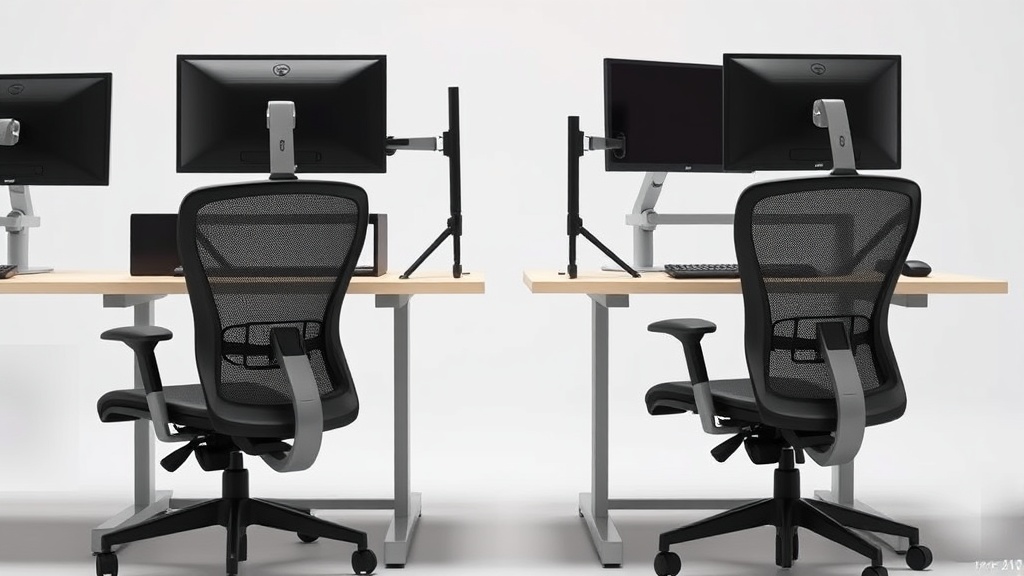
A monitor arm is a mechanical mount that holds your monitor(s) above your desk, allowing height, depth, tilt, and rotation adjustment beyond what a fixed stand or riser can offer. For multi-monitor setups, these arms often have dual or tri-screen mounts that enable:
- Side-by-side layout or stacked configurations
- Customized viewing angles and heights per monitor
- Desk space optimization through clearance underneath
Beyond free desk area, the right monitor arm facilitates an ergonomically correct posture. Ideally, the top of your monitor should be slightly below eye level, about an arm’s length away, and directly in front of you. Monitor arms make it easy to achieve this, which prevents neck strain and reduces eye fatigue over long workdays.
Important Ergonomic Considerations for Multi-Monitor Arms
Before diving into product recommendations, it’s crucial to understand a few ergonomic factors influenced by your chair and setup:
-
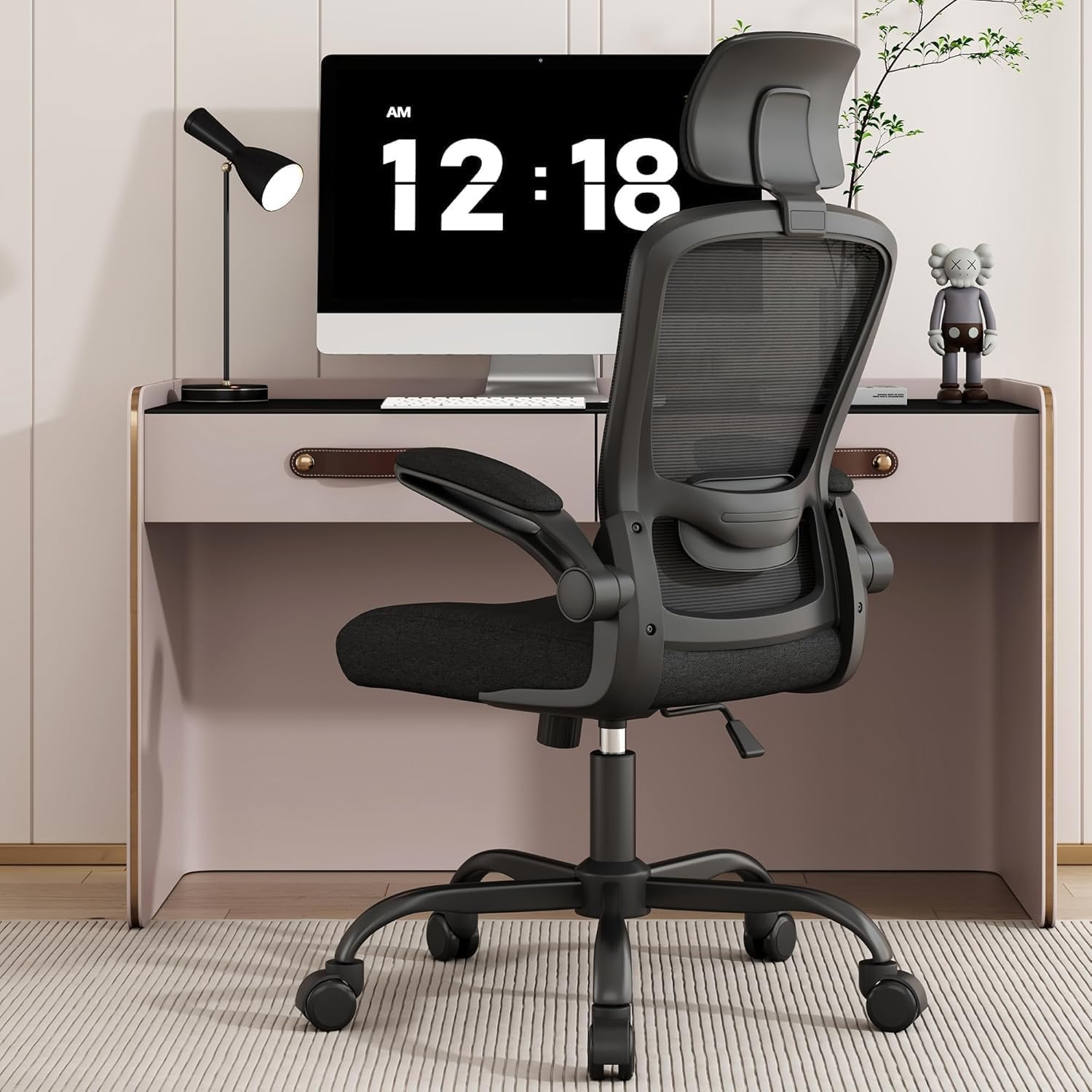
Seat Depth & Chair Fit: Your monitor arm position should complement your chair’s seat depth. If your chair’s seat pan is too deep or shallow, even a perfect monitor arm won’t fix neck and back strain because you’ll be too far or too close to the screen.
-
Lumbar Adjustability: Your chair’s lumbar support range affects how upright you can sit. The monitor height and tilt settings must accommodate your natural spine curve without forcing awkward forward lean.
-
Armrest 4D Adjustability: Adjustable height, width, depth, and pivot armrests enable a relaxed arm position while typing and using the mouse. The monitor arrangement needs to match this comfort zone to avoid repetitive strain, especially when reaching across multiple screens.
So, the monitor arm you choose isn’t just about strength and flexibility — it’s about how well it adapts to your body and chair for sustained comfort.
Top Chairwise Monitor Arms for Multi-Monitor Workstations
The best monitor arms for ergonomic multi-screen setups strike a balance between adjustability, compatibility, build quality, and ease of use. Here’s a practical ranked list based on those criteria:
| Rank | Feature | Description | Ideal Scenario | Trade-off |
|---|---|---|---|---|
| 1 | Full Articulation + 4-Arm | Independent height, tilt, swivel, and rotation for 2-3 screens; robust gas spring mechanism | Users with chairs offering full 4D armrest travel and deep lumbar support wanting max posture control | Higher price, installation required |
| 2 | Modular Multi-Arm Layout | Separate arms easily repositionable, supporting up to 4 monitors; heavy duty clamp or grommet mounting | Flexible setups where screens change frequently; users with chairs offering moderate seat depth adjustment | Bulkier desk footprint |
| 3 | Fixed Height with Tilt | Easier to install dual-arm setups that allow only tilt and swivel adjustments but lock monitor height | Budget-conscious workers with ergonomic chair armrest height and depth limitations | Less ergonomic fine-tuning, may cause neck pain over time |
| 4 | Crossbar Style Triple Mount | Single structure mounting 3 wide screens with fixed alignment, good cable management | Professionals with fixed work habits needing stable triple-screen workspace | Limited height adjustability and customization |
| 5 | Lightweight, Articulated | Lighter arms with smaller footprint, easier manual adjustment, less industrial look | Users with smaller desks or less frequent monitor repositioning | Less durable, limited weight support |
How to Choose the Right Monitor Arm for Your Multi-Monitor Setup
-
Assess Your Chair’s Ergonomic Range: Measure or check specs on seat depth, lumbar adjustability, and 4D armrest travel. These determine how much monitor positioning freedom is beneficial.
-
Count Your Screens and Layout Needs: Single, dual side-by-side, horizontally stacked, or triple curved? Ensure the arm’s max supported monitors and mounting style match your physical workspace.
-
Check Weight Capacity and VESA Compatibility: Your monitors’ weights and mounting hole standards (usually 75x75 or 100x100 mm) must fit the arm. Overloading a gas spring arm causes sag and frustration.
-
Consider Desk Thickness and Mount Type: Most arms clamp to the desk edge or mount via a grommet hole. Confirm your desk can handle the clamp pressure or has mounting options.
-
Plan for Cable Management: Some arms offer integrated cable channels which reduce clutter. This matters with 2+ monitors and multiple peripherals.
-
Try Physical Adjustments and Range: Look for gas spring arms or spring-assisted joints for smooth repositioning during the day. Locking or friction-only arms require more force and precision.
-
Balance Budget Against Usability: Don’t sacrifice adjustability and ergonomic benefits to save a few dollars upfront. Pain and distraction from poor fit cost more in lost productivity.
Common Pitfalls When Selecting Monitor Arms
-
Ignoring Chair Compatibility: Many users buy arms without considering their chair’s adjustability. A great monitor arm can’t fix poor chair seat depth or fixed armrest height.
-
Overloading or Under-Support: Users sometimes buy arms rated for single monitors and then mount multiple heavy screens, which causes sagging and breakage.
-
Neglecting Cable Organization: Poor cable management leads to tangled wires and limits movement. It’s an overlooked practical issue.
-
Choosing Fixed Height Arms for Varied Users: Shared workstations must allow easy height adjustments; fixed arms lead to discomfort.
-
Skipping Physical Trials: Demoing different arms (or reading pressure-mapping and ergonomic reviews) is crucial to know how 8+ hour use feels versus marketing hype.
Frequently Asked Questions
Q: How important is monitor height adjustment compared to tilt and swivel?
A: Height adjustment is critical for eye-level alignment to prevent neck strain. Tilt and swivel allow angle fine-tuning, but without proper height, those adjustments only provide limited comfort.
Q: Can I use a single monitor arm to mount three screens?
A: Yes, some crossbar or multi-arm systems support triple monitors. However, independent arms for each monitor usually offer better ergonomic control though occupy more desk space.
Q: Will a monitor arm fix neck pain if my chair isn’t ergonomic?
A: Not entirely. The chair and monitor arm work as a system. Poor seat depth or fixed, non-adjustable lumbar support means incorrect body posture that a monitor arm alone cannot fix.
Choosing the right monitor arms that coordinate smoothly with your ergonomic chair settings is essential for a fatigue-free multi-monitor workspace. Focus on mechanical adjustability, compatibility, and realistic long-term comfort rather than marketing buzz — your neck and back will thank you after 8 hours of focused work.
Related reading
- How to Select the Perfect Monitor Arm for Dual Screens
- Monitor Arms That Boost Desk Space and Posture Alignment
- 40. How to set up a second screen without looking down all day
- Monitor Arms with Swivel and Tilt for Maximum Flexibility
- 21. Single monitor vs dual monitor arms for the same workflow