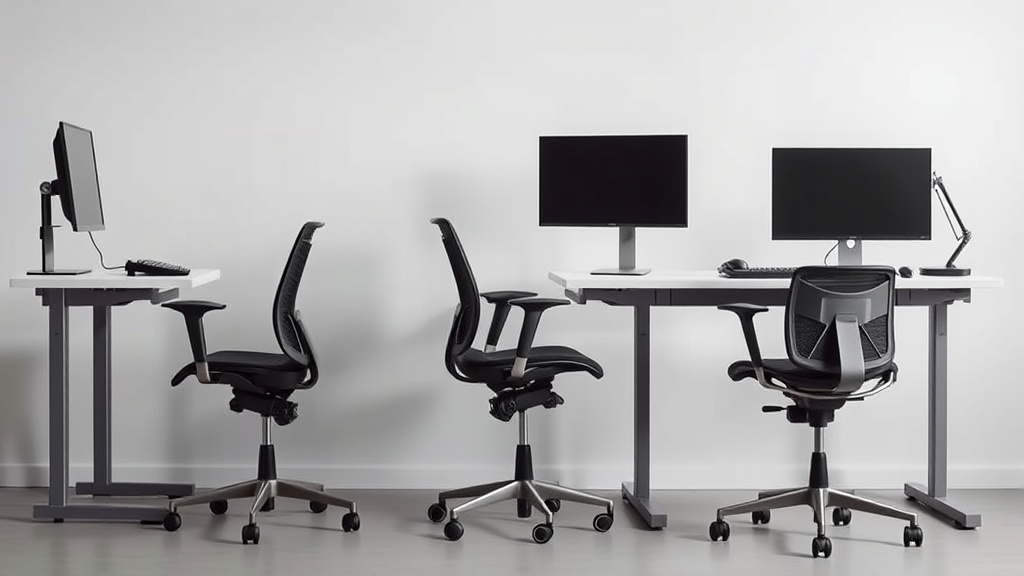
If you’re spending long hours at your desk and your chair isn’t properly adjusted, you’re probably feeling discomfort in your back, neck, or shoulders by midday. An ergonomic chair should support your natural posture throughout the day, but without thoughtful setup, even the most expensive chair won’t prevent strain or fatigue. This guide will walk you through how to adjust your ergonomic chair for maximum support, focusing on fit, pressure distribution, and realistic comfort during an 8-hour workday.
How to Adjust Your Ergonomic Chair for Maximum Support
Step 1: Set the Seat Height for Optimal Knee and Hip Positioning
Start by adjusting your chair’s height so your feet rest flat on the floor or on a footrest, with knees bent at a roughly 90-degree angle. Your thighs should be parallel to the ground, or tilted slightly downward to promote better blood circulation. Avoid sitting too high, as dangling feet can cause pressure under the thighs and disrupt circulation.
Why it matters: Proper seat height prevents pressure build-up beneath your thighs and promotes even weight distribution.
Step 2: Adjust Seat Depth to Support Your Thighs Without Pressure Behind Knees
Seat depth (the distance from the backrest to the front seat edge) is crucial for comfort. Ideally, you should have about 2-3 fingers’ width of space between the front edge of the seat and the back of your knees. This clearance prevents pressure that could lead to numbness or restricted leg movement.
If your chair has adjustable seat depth, slide the seat forward or backward to find this balance. For non-adjustable seats, consider a cushion or pressure-relief pad.
Tip: Pressure-mapping studies show that seat pans with the right depth reduce hotspots behind knees and under the thighs that can cause discomfort in extended sitting.
Step 3: Fine-Tune Lumbar Support for Lower Back Comfort
Lumbar support keeps the inward curve of your lower spine supported, which is key to reducing lower back strain. Most ergonomic chairs offer adjustable lumbar supports that move vertically and sometimes change in firmness or projection depth.
Position the lumbar support so it fits snugly into the small of your back, typically against the L3-L5 vertebrae. It should not push your back forward excessively, just maintain the natural curvature. Try leaning back and forth while feeling for consistent contact.
Step 4: Configure the Backrest Tilt & Tension
Your backrest angle and the resistance it offers to recline (tension) impact how much support you get when leaning back. A slight recline of around 100-110 degrees helps reduce spinal compression and can take pressure off your discs during breaks.
Set the backrest tilt so that it supports your upper and lower back comfortably without forcing you forward. Adjust the tension so the chair moves smoothly with your weight and doesn’t snap backward or feel flimsy.
Step 5: Adjust Armrests in 4D for Shoulder and Forearm Support
Armrests that are well-positioned reduce strain on your shoulders and neck by supporting your forearms. Most high-quality ergonomic chairs offer 4D armrests which adjust:
- Height – so your shoulders can relax, avoiding raising or shrugging.
- Width – bringing your arms closer or further from your torso to align elbows under shoulders.
- Depth – supporting near the elbow without forcing the wrists to bend.
- Pivot or rotation – to match your natural arm posture and keyboard/mouse position.
Your aim: forearms parallel to the floor, elbows approximately 90 degrees bent, wrists straight, and shoulders relaxed.
Step 6: Adjust Headrest (If Available) to Support Neck Alignment
If your chair has a headrest, position it so it supports the base of your skull when you lean back, avoiding forcing your head forward. This reduces strain on your cervical spine during moments of rest or while thinking through complex tasks.
Measuring Fit vs. Marketing Claims: What Really Matters?
| Feature | Marketing Emphasis | Practical Considerations | Realistic 8-Hour Comfort Impact |
|---|---|---|---|
| Seat Height | ”Easily adjustable and smooth” | Must match your leg length; check knee angle | Prevents leg numbness, improves posture |
| Seat Depth | ”Extra-wide and deep cushions” | Adjustable depth to avoid knee strain | Critical for circulation; often overlooked |
| Lumbar Support Range | ”Dynamic and customizable support” | Range and firmness must fit your lumbar curve | Reduces lower back fatigue, prevents slouching |
| Backrest Tilt & Tension | “Multi-angle reclining with lock” | Smooth mechanics with appropriate tension | Encourages movement, reduces spinal load |
| Armrest Adjustability | ”4D movement for personalized support” | Adjust height, width, depth, and pivot | Supports shoulders and wrists, reduces strain |
| Pressure Mapping | Rarely mentioned | Identify pressure hotspots in seat and back | Helps validate your chair setup in practice |
While chairs claim features like “memory foam” or “perfect lumbar support,” what matters is adjusting these features to your body dimensions and working style. Many users over-trust marketing language and end up with poorly adjusted chairs that cause discomfort despite premium claims.
Tips for Confirming Your Setup is Effective During the Day
- Move regularly: Even the best adjustment can’t eliminate the downsides of prolonged sitting. Shift position every 30 minutes.
- Test posture after 2+ hours: If you notice discomfort, revisit armrest height and backrest tilt first.
- Use pressure mapping or a cushion: At-home pressure sensors or gel cushions can highlight areas where pressure spikes after long sitting.
- Ask coworkers or ergonomics professionals to check your setup: A second pair of eyes can catch misalignments.
Frequently Asked Questions
Q: How do I know if my seat depth is right?
A: Sit fully back and check that about two fingers fit comfortably between your knees and the seat edge. No pressure behind knees indicates good depth.
Q: Are armrests necessary for ergonomic support?
A: Yes, properly adjusted armrests support forearms and reduce shoulder strain. However, ill-fitting armrests can force awkward posture, so adjust 4D if possible.
Q: Should I lean back while working?
A: Occasionally yes; a slight recline reduces spinal pressure and gives muscles a break. Use the chair’s tilt-lock and tension settings to find a comfortable lean position.
Proper ergonomic chair adjustment is an iterative process and key for maintaining comfort and productivity during long desk hours. By focusing on measurable fit factors like seat depth, lumbar positioning, and armrest manipulation, you can create a sustainable sitting posture that minimizes strain and supports your workday.
