Using a laptop for extended hours at a home office can quickly lead to neck pain, eye strain, and wrist discomfort if your setup isn’t ergonomically sound. Unlike desktop setups, laptops bundle the screen and keyboard into one unit, often forcing awkward postures that don’t align with your body’s natural posture for healthy sitting. This article breaks down practical ergonomic tips specifically aimed at laptop users working long hours from home, focusing on fit, adjustability, and real-world comfort—not just marketing buzzwords.
What Is Ergonomics for Laptop Use?
Ergonomics is the science of designing workspaces and tools to fit the user’s body and capabilities, reducing strain and injury risks. For laptop users, this means optimizing screen height, keyboard/mouse position, seating, and arm support so that the body maintains a natural, relaxed posture during prolonged use.
Unlike a desktop setup where monitors and keyboards are separate, the fixed screen-keyboard distance on laptops restricts your ability to optimize everything at once. Ergonomic laptop use embraces smart compromises and accessories that help create a work environment that supports your body for hours each day.
See also: 24. How to set up a laptop-only home office ergonomically
How Ergonomics Works for Laptops
The fundamental ergonomic principle for laptop use is aligning your head, neck, spine, shoulders, arms, and wrists in comfortable neutral positions. Key ergonomic targets while working on a laptop include:
-
Screen height: The top of the screen should be roughly at or slightly below eye level to prevent neck flexion or strain from looking down.
-
Viewing distance: Eyes should be about an arm’s length (20-30 inches) from the screen to avoid eye strain.
-
Keyboard height and angle: Your keyboard should allow your forearms to be roughly parallel to the floor or slightly declined, with wrists straight and not bent upwards or downwards.
-
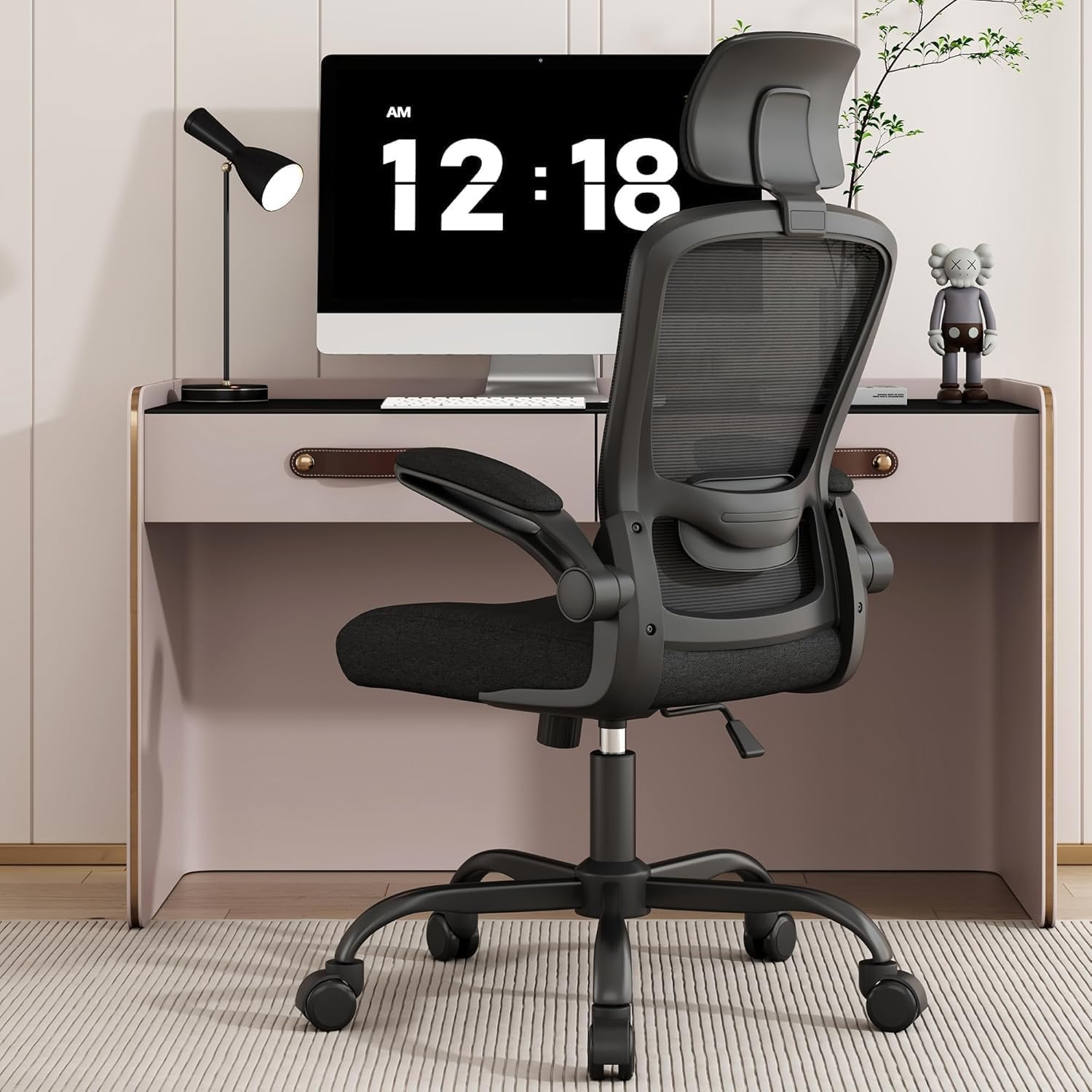
Armrest use: Adjustable armrests with 4D travel (height, width, depth, pivot) can help your arms and shoulders stay relaxed and supported.
-
Seat fit and lumbar support: Seat depth should support your thighs without pressing behind your knees; lumbar adjustability in a chair allows you to fine-tune lower back support.
Because laptops combine screen and keyboard, you rarely get this alignment naturally. Often, elevating the laptop for screen height results in awkward wrist angles on the keyboard, and placing the laptop flat causes neck strain. Addressing this mismatch involves using external accessories or adjustable furniture where possible.
When to Prioritize Ergonomics in Laptop Use
-
Working 4+ hours per day on your laptop, especially seated
-
Experiencing neck, shoulder, upper back, or wrist discomfort or fatigue
-
Using your laptop as your primary workspace device (not just occasional use or meetings)
-
Sitting in a home office setup where your furniture or layout limits mobility or adjustment
Even if discomfort is mild or intermittent, implementing ergonomic principles early helps prevent chronic musculoskeletal problems like tendinitis, carpal tunnel, or postural issues.
Practical Ergonomic Tips for Laptop Users in Home Offices
1. Elevate Your Laptop Screen
Use a sturdy laptop stand or a stack of stable books to raise the screen to eye level. This reduces neck flexion and encourages an upright head and neck posture.
-
The goal: Top of your screen at or slightly below eye level
-
Maintain about an arm’s length distance between eyes and screen
2. Use an External Keyboard and Mouse
Because elevating your laptop moves its keyboard upward, an external keyboard and mouse let you maintain a neutral wrist position by keeping your forearms parallel (or slightly declined) and your wrists straight.
-
Place external keyboard and mouse directly in front of you
-
Ensure keyboard height aligns with your seated elbow height
3. Choose a Chair With Adjustable Seat Depth and Lumbar Support
A chair that lets you fine-tune seat depth ensures your thighs are fully supported without pressure behind your knees—vital for circulation and comfort.
-
Lumbar support helps maintain the natural curve of your lower spine, preventing slouching
-
Armrests with 4D adjustability (height, width, depth, pivot) promote relaxed shoulder and arm posture
4. Optimize Your Sitting Posture and Reach Zone
-
Keep elbows close to your body and arms supported
-
Avoid reaching forward or sideways for keyboard/mouse
-
Feet should rest flat on the floor or on a footrest
5. Monitor Your Working Distance and Lighting
Eye strain is common when working on laptops due to glare or improper viewing distance.
-
Avoid glare from windows or direct light sources by repositioning your setup
-
Consider an anti-glare screen protector
-
Use task lighting for documents to reduce eye strain
Comparison Table: Laptop Ergonomic Setup Options
| Feature | Laptop Alone | Laptop + Stand + External Keyboard/Mouse | Laptop Docking Station Setup |
|---|---|---|---|
| Screen Height Adjustability | None | High (with stand) | High (multiple external monitors possible) |
| Keyboard Ergonomics | Poor (fixed to laptop base) | Good (separate, adjustable keyboard) | Excellent (full-sized, ergonomic peripherals) |
| Armrest Utility | Limited | Good (easier with external peripherals) | Best (complete workstation setup) |
| Setup Complexity | Simple | Moderate (extra accessories, some cable management) | Complex (multiple devices, higher cost) |
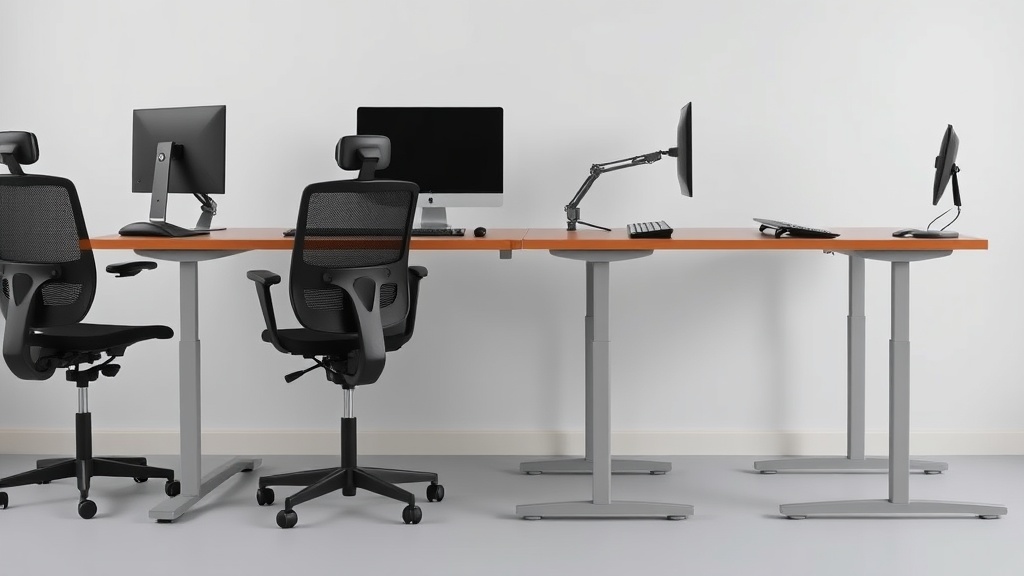
| Space Requirements | Compact | Slightly larger footprint | Largest footprint due to peripherals |
| Cost | Low | Medium | High |
| Best For | Short sessions, portability | Regular 4-8 hour workdays, improved ergonomics | Full-time heavy work, maximum ergonomics |
Common Pitfalls to Avoid
-
Using the laptop flat on a desk for hours: This forces you to look down and flex your neck, causing strain.
-
Ignoring arm and wrist support: Without armrests or forearm support, shoulders can tense and wrists can bend awkwardly.
-
Neglecting seat fit: If your chair’s seat depth is too long, it can cut off circulation behind the knees; too shallow reduces thigh support.
-
Relying solely on marketing claims: Ergonomic features like “adjustable” armrests or lumbar support are only beneficial if they fit your body’s range; try before you buy or check return policies.
-
Overcomplicating setup: Complex setups with excessive accessories can increase cable clutter or reduce desk space, which may add frustration rather than comfort.
Summary
Laptop users in home offices face unique ergonomic challenges due to the fixed screen-keyboard design. The key to sustainable comfort lies in elevating your screen, using external input devices, and investing in adjustable chairs that fit your body dimensions well. Understanding the measurable elements of ergonomic fit—such as seat depth, lumbar support, armrest adjustability, and appropriate viewing distances—helps you see past marketing hype to what truly maintains your health during long workdays. With deliberate setup choices and practical accessories, you can greatly reduce pain and fatigue while improving productivity without a full desktop upgrade.
Frequently Asked Questions
Q: Can I just use a laptop stand without an external keyboard?
A: Temporarily yes, but over long hours this often leads to awkward wrist angles and shoulder tension. An external keyboard/mouse is recommended for prolonged use.
Q: How do I measure proper seat depth?
A: Sit with your back against the chair and ensure there’s about 2-3 fingers’ width space between the front edge of the seat and the back of your knees.
Q: Are adjustable armrests really necessary for laptop ergonomics?
A: Adjustable armrests help reduce shoulder strain by supporting your arms in a natural position and allowing you to relax shoulder muscles. Look for 4D adjustability for the best fit.