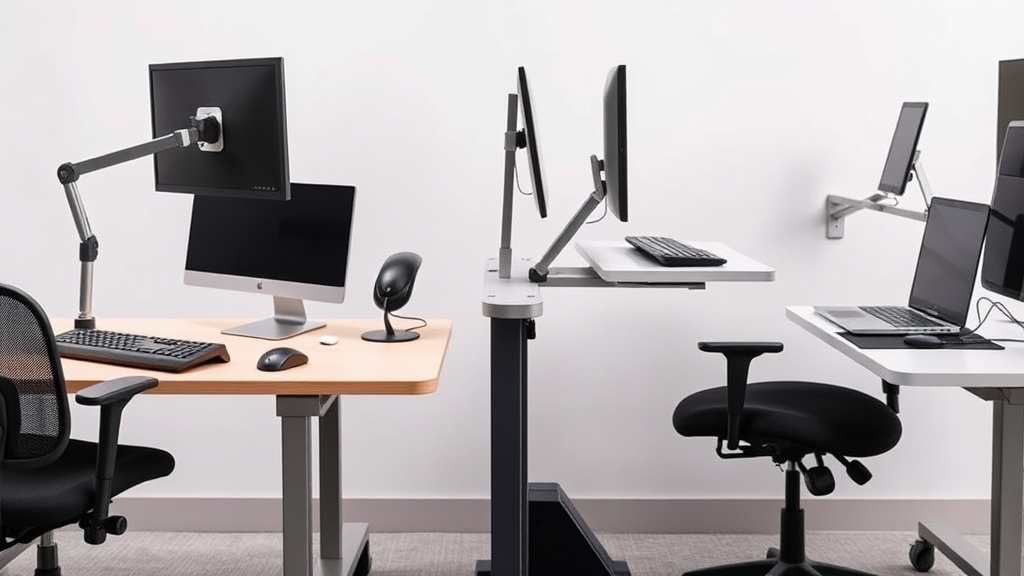
Using an external keyboard with a laptop might sound like a straightforward way to boost comfort and productivity. But without ergonomic setup, you could end up with wrist strain, neck pain, or tight shoulders after a full day’s work. The core issue: simply plugging in an external keyboard doesn’t guarantee a healthier workstation. You need to consider keyboard position, seating posture, screen height, and individual fit — especially for extended 8-hour use.
This article breaks down practical, ergonomic tips for using external keyboards effectively, focusing on real-world fit factors and how to avoid marketing fluff. Proper adjustments like seat depth, keyboard angle, and screen height make a measurable difference in comfort, health, and sustained productivity.
What Using an External Keyboard Ergonomically Means
Using an external keyboard ergonomically isn’t just about having a separate peripheral away from your laptop. It’s about how the entire setup — keyboard, chair, desk height, and display — align with your body to minimize strain over long hours. Key metrics to focus on include:
- Keyboard height and distance: Your forearms should be roughly parallel to the floor or slightly declined when typing, with wrists straight and relaxed.
- Seat depth: This influences how closely you can sit at your desk without pressure behind the knees or slouching forward.
- Lumbar support adjustability: Proper lower back support keeps your spine neutral during seated work.
- Armrest adjustability (4D): Armrests that move in height, width, depth, and angle help maintain relaxed shoulders and reduce upper back tension.
- Screen height and distance: Your eyes should naturally hit the top third of the screen at a comfortable viewing distance, which influences neck posture.
Most laptop users underestimate the benefit of adjusting these ergonomic variables together rather than focusing solely on keyboard choice or chair comfort.
How to Set Up Your External Keyboard Ergonomically: 6 Practical Steps
1. Position the Keyboard at the Correct Height
Your keyboard should sit so that when your hands are on the keys, your elbows form about a 90-degree angle, forearms roughly parallel to the floor or angled slightly downward. Avoid keyboards placed too high or too low because:
- Keyboard too high: Shoulders become elevated and tense, risking neck and shoulder pain.
- Keyboard too low: Wrist extension or bending increases, raising risk of carpal tunnel or tendonitis.
Tip: Use an adjustable keyboard tray or a desk with height control if possible. If not, consider a sit-stand desk setup to vary posture throughout the day.
2. Keep the Keyboard Close to Avoid Overreaching
Place the keyboard close enough so that your elbows stay near your sides. Reaching too far forward not only strains shoulders but also encourages leaning forward, which negatively affects spinal posture.
Avoid systems where the keyboard is angled far from the edge of the desk. Using a compact external keyboard rather than a full-size layout can help prevent unnecessary reach.
3. Use a Separate Mouse Positioned Near the Keyboard
Since your laptop trackpad is often positioned awkwardly relative to the external keyboard, use an external mouse placed just beside the keyboard to avoid lateral reach. This keeps your arm in line with your torso and reduces upper back strain.
A vertical or ergonomic mouse can also lower wrist pronation, but the physical setup to keep the mouse close is the priority.
4. Adjust Your Chair and Desk to Support Keyboard Positioning
Your seat height, depth, and lumbar support all contribute to the comfort of your typing posture. Here are key ergonomic considerations:
| Feature | Recommendation | Why It Matters |
|---|---|---|
| Seat Depth | Approx. 1-2” (2.5-5 cm) space behind knees | Prevents thigh pressure and promotes circulation |
| Lumbar Support Range | Adjustable to maintain natural spine curve | Supports lower back, preventing slouching |
| Armrest Travel (4D) | Adjustable height, width, depth, and pivot angle | Keeps shoulders relaxed, avoiding upper body tension |
Without adjustable seating or armrests, your ability to maintain healthy keyboard positioning over long workdays diminishes significantly.
5. Elevate Your Laptop Screen to Eye Level
Using an external keyboard disconnects your hands from the laptop’s keyboard, meaning the laptop screen will likely be off to the side or at a different angle. Elevate the laptop screen using a laptop stand or books so the top third of the screen is at eye level. This prevents neck strain from looking down during work.
This step is crucial because many who use external keyboards neglect monitor height, undoing ergonomic gains by compromising neck posture.
6. Use Pressure Mapping or Feedback Tools for Fine-Tuning (If Possible)
While not essential, pressure mapping tools or devices that measure wrist angles and muscle tension can provide insights into potential pressure points. For instance, uneven pressure distribution in your wrists or shoulders may suggest the need for a keyboard with a steer or negative tilt or improved armrest support.
Investing in small hand/wrist support pads or ergonomic keyboard wrist rests can help but only after ensuring your basic setup supports natural posture.
Why Marketing Can Mislead and What 8-Hour Use Really Feels Like
External keyboards are often marketed with claims about reduced fatigue, enhanced comfort, or improved productivity without clarifying what actual ergonomic principles underpin these benefits. Beware of generic “ergonomic” taglines that don’t specify:
- Compatibility with your unique body dimensions (seat depth and armrest adjustability matter here)
- The keyboard’s ability to adjust pitch/tilt for wrist neutrality
- The keyboard size relative to your desk and seating position
- How the keyboard integrates with your screen height and mouse position
After 8 hours at a poorly set up workstation, “comfortable” keyboards still feel tiresome or even painful. The cumulative effect of minor posture deviations over time manifests as discomfort, tightness, and reduced focus. Making measured fit adjustments to your entire workstation is the difference between “marketing promise” and lived ergonomic reality.
Comparison Table: Keyboard Setup Options by Ergonomic Fit Factors
| Setup Type | Keyboard Positioning | Compatibility with Chair Adjustments | Screen Height Consideration | Real-World Comfort for 8+ Hours | Notes |
|---|---|---|---|---|---|
| Laptop Keyboard Only | Fixed on laptop, often too high | Limited, depends on chair | Screen and keyboard fixed together | Low, increases wrist and neck strain | Not recommended for long use |
| External Keyboard on Desk | Close to edge, adjustable height | Works with adjustable chairs and armrests | Flexible (use laptop stand for screen) | Moderate to high | Best with adjustable chair and screen stand |
| Keyboard Tray Setup | Usually adjustable height & angle | Integrates well with well-adjusted seating | Needs laptop stand or external monitor | High, supports consistent neutral posture | Offers best ergonomics if configured properly |
| Compact Mechanical Keyboard | Smaller footprint, close reach | Depends on chair armrest/seat adjustability | Requires external laptop stand | High if posture is maintained | Good for more precise fit and positioning |
Summary
Using an external keyboard with your laptop can dramatically improve comfort and reduce long-term injury risk — but only if you take a thoughtful, measured approach focused on ergonomic fit rather than hype. Adjust the keyboard height and distance to keep wrists neutral and elbows bent about 90 degrees. Use an adjustable chair with 4D armrests and proper lumbar support to maintain posture. Elevate your laptop screen to eye level for neck comfort. Consider compact keyboards and pressure-mapping feedback for fine-tuning.
Remember that “ergonomic” marketing claims don’t guarantee comfort after 8 hours at your desk. Real comfort requires an integrated setup focusing on body dimensions, movement freedom, and measured adjustments.
Frequently Asked Questions
Q: Can I use any external keyboard ergonomically with my laptop?
A: Not necessarily. Ergonomics depends more on your setup (keyboard height, distance, chair adjustments) than any single keyboard. Choose a keyboard that fits your workspace size and can sit at an ideal height and angle.
Q: Is a mechanical keyboard better for ergonomics?
A: Mechanical keyboards often offer better key travel and tactile feedback but only improve ergonomics if combined with proper setup. They don’t replace the need for good seat and screen positioning.
Q: Should I always use a laptop stand when using an external keyboard?
A: Yes, elevating your laptop screen to eye level is an essential part of an ergonomic workstation when using an external keyboard to avoid neck strain. A stand or separate monitor works best.
