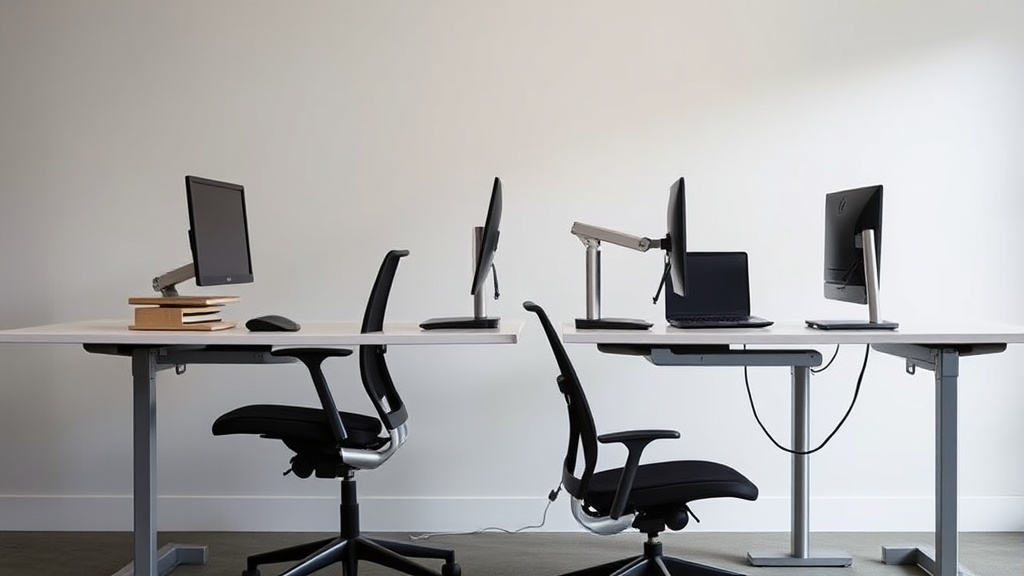
Setting your monitor at eye level is a simple adjustment that can have a huge impact on your neck health. Many desk workers spend eight or more hours a day staring at screens positioned too low or too high, leading to chronic neck strain, stiffness, and even long-term musculoskeletal issues. If you’re dealing with neck pain or want to prevent it, learning how to position your monitor correctly is essential. This article breaks down what eye-level positioning really means, why it matters, and practical steps to set up your workstation for better comfort and posture throughout your workday.
What Does “Monitor at Eye Level” Mean?
Having your monitor at eye level means that the top edge of your screen is aligned roughly with your natural line of sight when you look straight ahead. This isn’t about having the center of the screen at eye height—it’s typically a bit lower to minimize excessive upward or downward neck tilt. The goal is to keep your head and neck in a neutral position, avoiding awkward bends that cause muscle fatigue.
Many ergonomic experts recommend that when you sit upright with good posture:
- The top third of the screen should be at or just below eye level.
- Your eyes look slightly downward at the screen, about 10–20 degrees.
- Your neck and shoulders remain relaxed without effort to maintain the gaze.
This positioning allows your neck muscles to stay in a natural, balanced position instead of being strained by holding your head up or down.
See also: Monitor Arm Positioning Tips to Avoid Neck and Eye Strain
Why Eye-Level Monitor Setup Is Key for Neck Health
Humans have a limited range of comfortable motion for their neck. When your monitor is too low, you tend to flex your neck forward, placing stress on the cervical spine and surrounding muscles. This forward head posture can lead to “tech neck,” characterized by stiffness, soreness, and headaches. Conversely, if the screen is too high, you might extend your neck backward, which also causes discomfort and fatigue over long periods.
Good monitor height supports:
- Neck Neutrality: Minimizing forward or backward tilting keeps your spine aligned, spreading mechanical load evenly.
- Reduced Muscle Fatigue: Less effort is needed to hold your head in position, avoiding muscle tightness.
- Improved Posture: It encourages an upright seated position, reducing slouching that can exacerbate neck and upper back pain.
- Long-Term Joint Health: Prolonged poor posture can accelerate wear on vertebrae and discs; eye-level monitors help prevent this.
How to Measure and Adjust Your Monitor for Eye-Level
Step 1: Determine Your Eye Height Sitting Comfortably
Sit in your usual chair at your desk, with your feet flat and spine upright. Take a small measuring tape or ruler and note the vertical distance from the seat surface to your eyes. Alternatively, use a wall and mark eye height by standing and then sitting in front of it.
Step 2: Measure Your Monitor Height
Most monitors have adjustable stands, but many standard desktop setups use fixed-height screens. Measure the vertical distance from the desk surface to the top of your screen.
Step 3: Calculate Needed Adjustment
If your eye height is, for example, 48cm above the desk, and your monitor top edge is at 40 cm, you’ll need an 8 cm lift. To create the slight downward gaze, the top edge of the monitor should be about level with or just below your eyes.
Step 4: Use Adjustable Monitor Stands or Risers
Select a monitor arm or riser that provides at least the difference between your eye height and monitor height. Monitor arms that offer height, tilt, and reach adjustability let you fine-tune the position.
Step 5: Set Viewing Distance
Position the monitor about an arm’s length away (roughly 50–70 cm). Too close or too far can increase strain, even with proper height.
Step 6: Check the Tilt Angle
Tilt the monitor backward about 10–20 degrees to support comfortable viewing with minimal neck tilt.
Comparing Common Monitor Setup Methods for Eye-Level Positioning
| Setup Method | Height Adjustability | Tilt Adjustability | Cost | Stability | Ease of Adjustment | Ideal For |
|---|---|---|---|---|---|---|
| Built-in Monitor Stand | Limited | Usually limited | Included | High | Low | Basic setups |
| Monitor Riser Stand | Fixed increments | Varies | Low-Mid | High | Moderate | Simple and inexpensive |
| Adjustable Monitor Arm | Full range | Full range | Mid-High | Medium-High | High | Frequent adjustments |
| DIY Solutions (Books, Boxes) | None | None | Free | Low | Low | Temporary or budget |
Practical Tips for a Healthy Viewing Setup
- Account for Multiple Monitors: If you use two or three screens, aim to place your primary monitor in the center at eye level, and angle secondary monitors inward to reduce neck rotation.
- Use Pressure-Mapping for Seat Fit: If you’re pairing monitor setup with an ergonomic chair, ensure the seat depth and lumbar adjustability allow you to maintain an upright posture comfortably for extended sessions.
- Adjust Armrests: Having armrests with 4D travel (height, width, depth, and pivot) helps support shoulders and upper arms, reducing compensatory neck muscle strain.
- Avoid Glare: Position monitors perpendicular to windows or bright light sources to reduce eye strain, which can indirectly affect neck posture.
- Take Movement Breaks: No setup eliminates the need for periodic movement and stretches to keep muscles healthy.
Common Pitfalls and How to Avoid Them
- Setting Monitor Too Low: This is the most frequent error, forcing you to look down sharply. Use a ruler or level to check.
- Ignoring Viewing Distance: Sitting too close or too far can cause you to lean forward, negating height adjustments.
- Forgetting Tilt: Flat monitors can cause you to tilt your head unintentionally; a slight tilt reduces neck strain.
- Overlooking Chair Adjustments: Monitor height alone doesn’t work well if your chair seat height or posture is off.
- Perfect on Setup, Failing After Hours: Test your setup after 4+ hours to ensure it remains comfortable throughout a full workday.
Frequently Asked Questions
Q: How do I know if my monitor is really at the right height?
A: When seated comfortably, your eyes should naturally rest at the level of the top third of the screen. You should feel no need to tilt your head up or down to view the text, and your neck should feel relaxed after a couple of hours.
Q: Can a laptop screen be adjusted to eye level?
A: Yes, using a laptop stand or external monitor placed at eye level with an external keyboard and mouse is recommended. Raising just the laptop screen without separate input devices often causes awkward arm and wrist postures.
Q: Is monitor height adjustment enough to fix neck pain?
A: It’s a crucial part but works best combined with a well-adjusted chair, good desk height, frequent breaks, and sometimes specific neck and shoulder stretching exercises.
A monitor placed thoughtfully at eye level is a foundation of ergonomic comfort for anyone working long hours at a desk. By measuring your personal eye height, adjusting your monitor position carefully, and considering overall desk setup, you’ll reduce neck strain noticeably. This practical approach helps you maintain neck health and avoid chronic pain long term.
