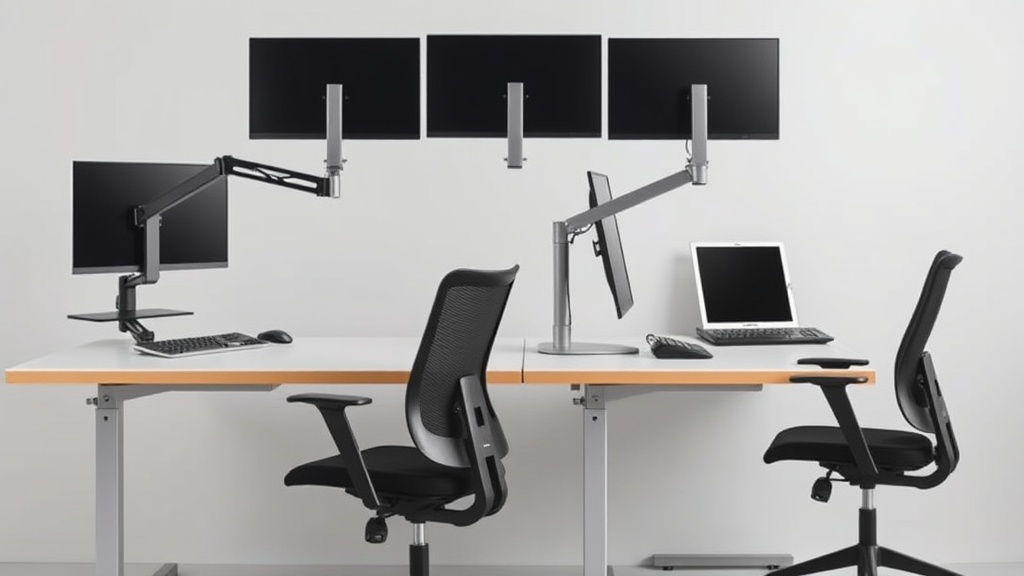
Selecting the Ideal Monitor Arm for Flexible Positioning
If you’re someone who spends long hours at a desk, you’ve probably noticed how uncomfortable or inefficient a poorly positioned monitor can be. Whether it’s neck strain, glare, or a cluttered desk, the wrong setup can affect your focus and physical health across an 8-hour workday. Monitor arms are meant to improve ergonomics by allowing flexible positioning, but not every arm supports the adjustments you actually need. This article breaks down how to select a monitor arm that truly improves your workstation comfort through practical features like height adjustability, range of motion, and mounting style—no marketing fluff, just what you’ll feel after several hours of use.
What Is a Monitor Arm?
A monitor arm is an adjustable bracket that holds your computer screen and attaches to your desk or wall. Unlike fixed stands, these arms allow you to position your monitor in multiple orientations, including height, tilt, swivel, and rotation, freeing up valuable desk space and optimizing your ergonomics.
How Monitor Arms Work
The core purpose of a monitor arm is ease of adjustment. Most arms include mechanisms such as gas springs or tensioned joints to allow you to move the monitor smoothly without tools, accommodating different postures and work activities. This flexibility helps reduce musculoskeletal issues by encouraging an ergonomic viewing angle aligned with your eye level.
Key Adjustment Axes / Movements:
- Height: Raises or lowers the monitor; critical for aligning screen top with eye height.
- Tilt: Angles the screen forwards/back; useful to reduce glare.
- Swivel: Turns the screen left or right; needed for collaborative work or dual workstation setups.
- Rotation: Switches between landscape and portrait; important for coding or reading long documents.
Choosing the Right Monitor Arm for Flexible Positioning
Your ideal monitor arm depends on factors like screen size/weight, desk type, mounting preferences, and especially your ergonomic needs. Here’s what to look for:
1. Weight and Display Size Compatibility
Check the monitor arm’s supported weight range and recommended display size. Arms too weak for your monitor won’t hold positions steadily, causing drift or sag. Conversely, overly robust arms designed for large screens may be bulky or overdamped for light monitors.
2. Degrees of Freedom — How Flexible Is It?
Not all arms move the same way. If you want full freedom to adjust inclination, height, swivel, and rotation for different tasks and users, look for arms labeled as “full motion” or “4-axis”. Articulating arms with multiple joints offer wider adjustability than simple tilt arms.
3. Height Adjustment Range
Ergonomics research emphasizes the importance of aligning the monitor top with your eye height. An ideal arm should accommodate your seated eye level height along the full range of common postures, usually around 15 to 25 cm of height adjustability. Arms with limited vertical travel may lock you into a suboptimal position.
4. Mounting Style
- Clamp Mount: Attaches to desk edge; easy to install and move but requires sufficient desk thickness and clearance.
- Grommet Mount: Bolts through desk surface; more secure but requires a drilled hole.
- Wall Mount: Saves desk space; great for minimalist or multi-user setups but involves wall installation.
Pick the mounting style that best fits your desk construction and workspace layout.
5. Adjustment Tension and Stability
Gas spring tension or adjustable friction screws allow you to fine-tune how easy it is to move your monitor arm. Ideally, you should be able to reposition smoothly without the arm drifting downward or feeling stiff. Pay attention to arm stability throughout the range, especially with heavier monitors.
6. Cable Management
Built-in cable channels keep cords tidy and out of the way during movement, preserving desk neatness and preventing cable strain on ports.
7. Material Quality and Build
Look for rock-solid metal construction rather than plastic where possible—it’s more durable, stable, and less prone to wear over years of use.
Comparison Table: Monitor Arm Features for Flexible Positioning
| Feature | Basic Tilt Arm | Articulating 2-Joint Arm | Full Motion 3-4 Joint Arm | Best For |
|---|---|---|---|---|
| Height Adjustability | Minimal (~5-10 cm) | Moderate (~15 cm) | Extensive (~20-30 cm) | Consistent eye-level alignment |
| Tilt Range | ~15° up/down | ~45° up/down | ~90° up/down | Reduce glare, viewing angle tweaks |
| Swivel Range | None or minimal | ~90° | Full 180° or more | Collaborative work, multi-user use |
| Rotation (Landscape/Portrait) | Usually no | Often included | Standard | Coding, document viewing |
| Mounting Options | Clamp or Grommet | Clamp, Grommet | Clamp, Grommet, Wall | Full desk versatility |
| Weight Capacity | Up to 8 kg | 8-12 kg | 8-15 kg+ | Large monitors, multiple displays |
| Cable Management | Rare | Usually included | Standard | Desk organization |
| Price Range | Low | Mid | Higher | Long-term use flexibility |
When to Use a Monitor Arm for Flexible Positioning
- You regularly change postures: Sitting, standing, leaning back—an arm lets you adjust monitor height and angle for comfort.
- Dual or multiple monitor setups: Arms help align screens ergonomically and free up desk space.
- Desk space constraints: Moving monitors off the surface maximizes usable work area.
- Different users sharing a desk: Easy adjustment accommodates various heights and preferences.
- Precision-focused work: Programmers, designers, or writers benefit from portrait and landscape switching.
- Glare and lighting challenges: Tilt and swivel reduce reflections from windows and lamps.
Common Pitfalls to Avoid When Selecting a Monitor Arm
- Overlooking weight compatibility: Don’t buy an arm too weak or too large for your monitor.
- Ignoring real adjustment range: Watch for small height or tilt limits that won’t suit your posture needs.
- Skipping mounting checks: Verify your desk can accommodate clamps or grommet mounts.
- Underestimating cable management: Tangled cords limit arm movement and clutter your workspace.
- Not testing movement smoothness: An arm that’s too stiff or too loose will hinder frequent repositioning.
- Neglecting desk depth and clearance: Some arms require significant space behind the monitor; ensure your setup allows it.
Summary
Selecting the ideal monitor arm requires balancing your monitor specifications, desk environment, and most importantly, your ergonomic needs. Focus on measured fit—does the arm adjust in height, tilt, swivel, and rotation ranges that suit your 8+ hours daily at the desk? Look for good tension control and solid build for stability during repeated repositioning. By prioritizing these practical ergonomic features, you’ll make a meaningful difference in comfort and productivity, rather than falling for marketing hype promising unrealistic “perfect posture” fixes.
Frequently Asked Questions
Q: Can I use one monitor arm for two monitors?
A: Yes, but make sure the arm is explicitly designed for dual monitors and can support the combined weight. There are specialized arms with two independent joints or a crossbar for two screens.
Q: How high should my monitor be positioned?
A: The top third of the screen should be roughly at eye level when seated comfortably. This minimizes neck strain and encourages good posture over long hours.
Q: Is a gas spring arm better than a friction arm?
A: Gas spring arms typically offer smoother and easier adjustments. Friction arms may require manual tightening but can be cheaper. Choose based on desired smoothness and budget.
See also: Maximizing Workspace Productivity with Chairwise Ergonomic Solutions
