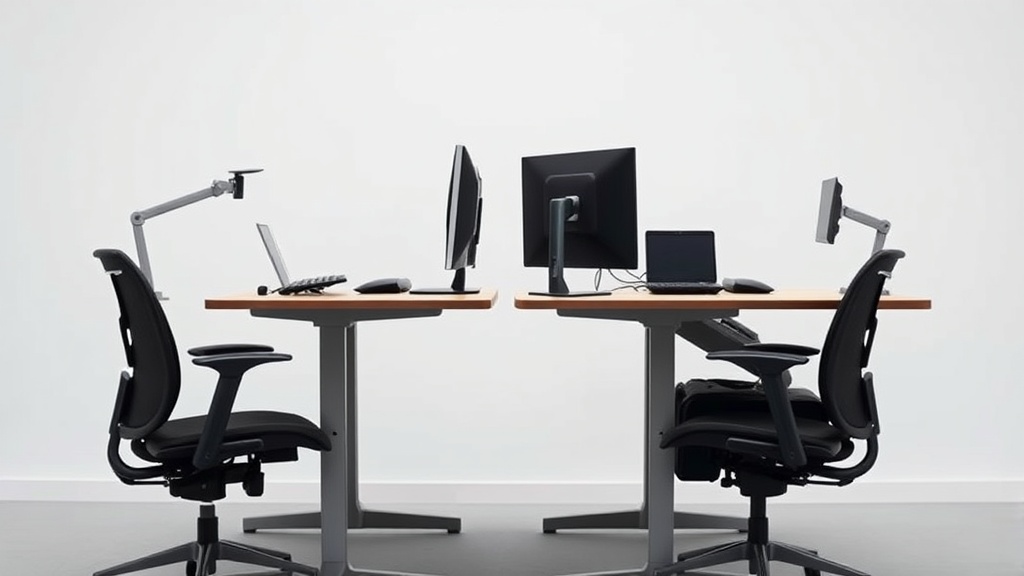
Monitor Arms That Boost Desk Space and Posture Alignment
If you’re spending eight or more hours a day at your desk, the setup of your workstation directly affects both your productivity and physical comfort. Many desk workers struggle with cramped workspaces and poor posture due to fixed, bulky monitor stands or improperly positioned screens. Monitor arms offer a practical, adjustable solution that can free up desk space and help maintain proper posture, but not all arms are created equal—and marketing claims often overpromise. This guide explains what monitor arms are, how they work to improve space and ergonomics, when you should consider one, and pitfalls to avoid.
See also: How to Prevent Neck Pain with Proper Monitor Placement
What Is a Monitor Arm?
A monitor arm is an adjustable support device that attaches to your desk or wall and holds one or more computer monitors. Unlike standard monitor stands fixed to the screen’s base, monitor arms have articulating joints allowing you to tilt, swivel, rotate, and change the height and distance of your screen. Their key purpose is to maximize your workspace efficiency while enabling ergonomic alignment to reduce strain on your neck, shoulders, and back.
How Monitor Arms Boost Desk Space and Posture Alignment
1. Desk Space Maximization
Traditional monitor stands take up valuable desk real estate, often displacing notebooks, keyboards, or coffee cups. A monitor arm typically clamps to the back or side of your desk or mounts through a grommet hole, eliminating the need for a bulky base directly on your desk surface. This frees up room for:
- Writing space
- Placement of additional work tools (paperwork, gadgets)
- Better desk organization enhancing focus
2. Ergonomic Posture Alignment
Proper monitor positioning is critical for comfort during long hours. Symptoms like eye strain, neck pain, and upper back discomfort are signs your monitor placement needs adjustment. Monitor arms help by enabling:
- Height Adjustment: Align your eye level roughly with the top third of the screen, reducing neck bending.
- Distance Control: Keep the screen at arm’s length (~20 to 30 inches), avoiding leaning forward.
- Tilt and Swivel: Adapt to natural head and eye movement without contorting your posture.
- Landscape and Portrait Mode Switching: Useful for specific workflows without turning your whole body.
By allowing tailored positioning, a monitor arm helps maintain “neutral spine” alignment—where your neck and back are straight and relaxed—and reduces cumulative musculoskeletal strain.
When to Use a Monitor Arm
You should consider a monitor arm if:
- Your current monitor base consumes much-needed workspace.
- Your desk is small or cluttered.
- You experience neck, shoulder, or upper back discomfort after work sessions.
- You switch between multiple monitors frequently.
- You want a cleaner, more professional desk setup.
- Your monitor’s built-in stand offers limited height/tilt adjustments.
Even people with adjustable office chairs and sit-stand desks often neglect the importance of monitor positioning, which a monitor arm readily solves.
Key Features to Evaluate in Monitor Arms
When selecting a monitor arm, look closely at these crucial ergonomic and fit specifications. These define whether the arm will meet your long hours and physical comfort needs:
| Feature | Why It Matters | What to Look For |
|---|---|---|
| Weight Capacity | Must support your monitor securely without sagging | Supports your monitor size (usually up to 20 lbs per arm) |
| Mount Type | Compatibility with your desk or wall setup | Clamp mount (desk edge), grommet mount (desk hole), or wall mount |
| Arm Reach & Height Range | Enables proper distance and eye-level positioning | Adjustable height up to at least 15 inches and reach 15+ inches |
| Articulation (Tilt, Swivel, Rotate) | Allows dynamic positioning and reduces glare | Tilt ±90°, swivel 180°+, rotation 360° for portrait mode |
| Adjustment Mechanism | Ease of repositioning during the day without tools | Gas spring or tension knobs for smooth movement |
| Cable Management | Keeps cables tidy and prevents clutter | Built-in clips or channels to route cables |
| Compatibility with VESA Mounting Standards | Ensures the monitor arm fits your monitor | Support for 75x75mm and 100x100mm VESA mounts is common |
How to Properly Fit and Adjust a Monitor Arm for Ergonomics
The key to reaping ergonomic benefits is not just the arm itself but thoughtful adjustments. Follow these steps:
Step 1: Choose the Right Arm Based on Monitor Size and Desk Setup
- Measure your monitor’s weight and ensure the arm supports it.
- Consider desk thickness for clamp mounts or hole size for grommet mounts.
- Confirm whether you want single or multiple monitor arms for your setup.
Step 2: Install According to Manufacturer Instructions
- Secure clamps or mounts tightly but avoid over-tightening that can damage the desk.
- Confirm the arm moves smoothly without wobbling.
Step 3: Adjust Monitor Height
- Sit in your usual chair and align your eyes to the top third of the screen.
- Raise or lower the arm securely to this height.
Step 4: Fine-Tune Distance and Tilt
- The monitor should be an arm’s length away.
- Tilt it slightly upward (~10 to 20 degrees) to reduce glare and maintain a neutral neck.
Step 5: Adjust Armrests and Chair Height to Complement Monitor Position
- Your elbows should rest at ~90 degrees with forearms horizontal.
- Armrests (preferably 4D adjustable) should support arm weight without pushing shoulders up.
Step 6: Regularly Reassess and Readjust
- After extended use, tiny discomfort signals may mean a tweak is due.
- Also check that cables haven’t become taut or tangled.
Common Pitfalls and How to Avoid Them
| Pitfall | Explanation | How to Avoid |
|---|---|---|
| Buying an arm with inadequate weight capacity | Monitor sags or arm cannot sustain movement | Check monitor specs and choose arms with margin |
| Ignoring desk thickness limits | Clamp won’t fit or mount is unstable | Measure desk thickness and hole diameter carefully |
| Poor adjustment ranges | Limited range restricts ergonomic positioning | Prefer arms with wide height/extension capabilities |
| Difficult to reposition | Stiff joints or non-gas springs hinder adjustments | Select arms with smooth gas spring mechanisms |
| Neglecting cable management | Messy cables cause clutter and restrict movement | Pick arms with integrated cable channels |
| Over-relying on marketing claims | ”Ergonomic” or “office approved” used loosely | Test and evaluate based on your own comfort over multiple days |
Conclusion
Monitor arms are a straightforward, effective way to reclaim desk space and establish a healthier posture during long hours at the computer. Their adjustability empowers you to customize monitor height, distance, and angle to fit your body, reducing strain and boosting comfort. To avoid disappointment, carefully assess weight capacity, mounting options, and articulation features. Pair your monitor arm with properly adjusted chairs and armrests, and schedule regular reassessments of your setup comfort. This practical investment often pays dividends in improved well-being and productivity.
Frequently Asked Questions
Q: Can I use any monitor arm with any monitor?
A: Most monitor arms support the industry-standard VESA mounts (75x75mm and 100x100mm). Check your monitor’s mounting pattern and weight, and choose an arm compatible with those specs.
Q: Does a monitor arm work with standing desks?
A: Absolutely. Monitor arms are especially useful with sit-stand desks as they allow easy, precise screen repositioning when changing desk height.
Q: Will a monitor arm prevent eye strain totally?
A: No single product fully prevents eye strain. Reducing glare, proper lighting, position, and breaks are all necessary alongside correct monitor placement to minimize eye fatigue.
Related reading
- Monitor Arm Installation Tricks for a Clutter-Free Desk
- 20. Ergotron LX vs Amazon Basics monitor arm: is the 5x price real?
- Selecting the Ideal Monitor Arm for Flexible Positioning
- Using Standing Desks to Boost Calorie Burn and Energy Levels
- 21. Single monitor vs dual monitor arms for the same workflow
