
Monitor Arm Weight Capacity: What You Need to Know

By Nate Frost · Senior Editor
Published May 12, 2026 · Last reviewed May 12, 2026
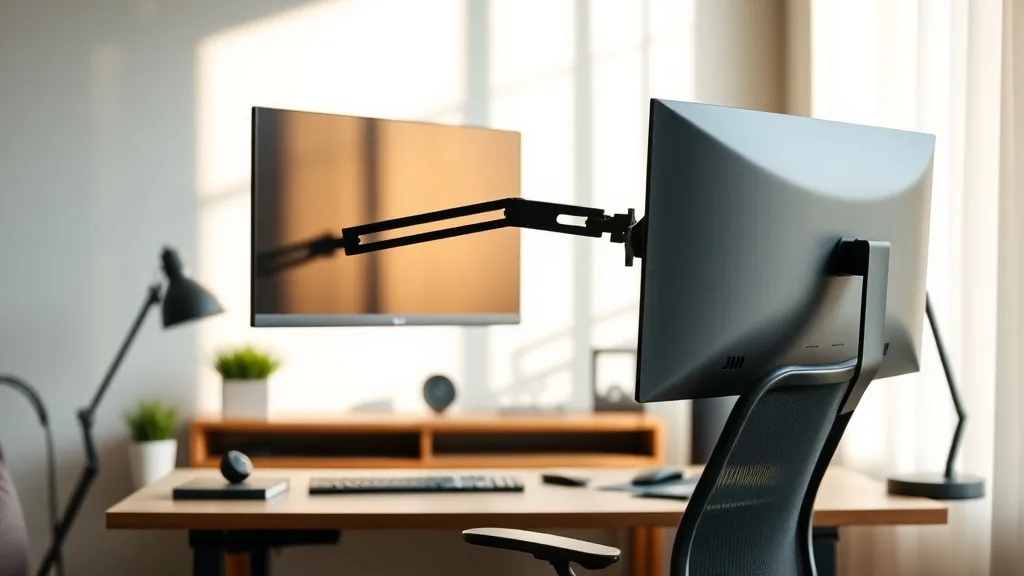
Monitor Arm Weight Capacity: What You Need to Know
If you’ve ever bought a monitor arm only to find your screen drooping, bouncing, or sliding out of position after a few hours, you know the frustration of mismatched weight capacity. Choosing a monitor arm that can support your display reliably is essential for sustaining proper ergonomics during long hours at your desk. But weight capacity isn’t just a number; it interacts with monitor size, adjustability features, and comfort over extended use. This guide will help you understand what monitor arm weight capacity means, how it affects your setup, and what to look for beyond marketing hype.
See also: 25. External displays for laptop users: 24 vs 27 vs 32 inches
What Is Monitor Arm Weight Capacity?
Monitor arm weight capacity refers to the maximum weight that a monitor mount can safely hold and support while maintaining its stability and functionality. It is usually specified in pounds (lbs) or kilograms (kg) and provided in the product specifications by the manufacturer.
This capacity is crucial because exceeding it can cause the arm to sag, lose tension, or, worse, break — all of which undermine ergonomic benefits. While weight capacity is a key metric, other factors such as compatibility with VESA patterns, arm length, and adjustability options also contribute to the overall effectiveness and comfort of your workstation.
How Does Weight Capacity Affect Ergonomics?
At first glance, a monitor arm that fits the weight on the box might seem fine. However, consider these deeper impacts on comfort and practicality during an 8-hour workday:
1. Stability Over Time
A monitor arm right at the edge of its stated weight capacity might hold the screen initially but can loosen or sag with frequent adjustments or long sessions at your desk. Ergonomic work demands easy adjustability of height, tilt, and swivel to minimize neck strain and encourage movement.
2. Pressure and Fit
The right fit for arm tension and pressure correlates with your monitor’s weight. Too light a weight on an arm designed for heavier screens often means weaker resistance and unwanted movement. Too heavy can cause a drop or strain on joints and screws in the arm’s mechanism.
3. Arm Adjustability Ranges
Monitor arms come with features like height adjustability, tilt range, and extension length. The achievable range often depends on the weight carried — exceeding recommended weights might reduce smooth travel, complicate adjustment, or damage components.
When to Choose a Higher Weight Capacity Monitor Arm
Knowing when to opt for a higher weight capacity arm depends on several factors tied to your specific workstation and how you use it:
- Large or Ultra-Wide Monitors: These screens are often heavier by construction.
- Dual or Triple Monitor Setups: Combined weight adds up, requiring arms with higher capacity or specialized multi-arm setups.
- Frequent Adjusters: If you move your monitor to different heights, angles, or distances throughout the day, a sturdier arm prevents sagging.
- Heavy Accessories on the Monitor: Some users attach peripherals like webcams, speakers, or hubs that add weight.
- Dense or Thick Bezels: Older or professional monitors often have more metal and plastic components, increasing weight.
How to Determine Your Monitor’s Weight
Before choosing a monitor arm, you should measure or find your specific monitor’s weight. Most manufacturers provide the weight in the product manual or online listings. If not:
- Use a shipping scale for an accurate read.
- Check online reviews or forums where users often post weight details.
- Factor in additional accessories or cables that might slightly add weight.
What Else to Consider Besides The Max Weight Capacity
While max weight is critical, also consider these ergonomics-related technical details:
Seat-depth Equivalent: Reach and Extension Length
Much like the seat depth in ergonomic chairs affects your thigh support and posture, the extension length on a monitor arm impacts how far you can pull the screen forward or push it back. Ensure the arm supports the right reach with stable weight capacity.
Lumbar Analog: Tilt and Swivel Range, and Lock-in Adjustability
Height and tilt adjustability help you maintain a comfortable viewing angle — important for reducing neck strain. Consider how the weight load affects how well these features hold, especially for longer sessions.
Armrest 4D Equivalent: Cable Management and Rotation
4D armrests provide height, depth, width, and rotation movements. In monitor arms, rotation capabilities (both screen surface and arm itself) combined with cable routing systems keep cables neat and accessible without sacrificing range or adding strain.
Comparison Table: Monitor Arm Weight Capacity vs Real-World Scenarios
| Feature / Scenario | Low Capacity Arms (Up to 15 lbs / 7 kg) | Mid Capacity Arms (15-25 lbs / 7-11 kg) | High Capacity Arms (25+ lbs / 11+ kg) |
|---|---|---|---|
| Typical Supported Monitors | Small to mid-size 24” screens | 24” to 32” screens | Large monitors 32”+ & ultra-wide |
| Suitability for Frequent Adjusting | Limited, may sag over time | Good, holds adjustment well | Excellent, smooth and stable |
| Use with Heavy Accessories | Not recommended | May work with light add-ons | Handles multiple accessories well |
| Durability under Prolonged Use | Moderate—risk of loosening over time | Strong, balanced for most users | Very strong, industrial-grade |
| Price Range | Budget-friendly | Mid-range | Premium pricing |
| Ideal User | Casual users on smaller monitors | Standard office setups | Power users, designers, and gamers |
Common Pitfalls to Avoid
1. Trusting Only the Max Weight on Packaging
Manufacturers often peak test arms under lab conditions, but real-world use adds factors like user adjustments, vibration from typing, or uneven monitor weight distribution. Always buy a monitor arm rated slightly above your monitor’s weight for safety and durability.
2. Ignoring VESA Compatibility
Weight capacity is meaningless if the arm doesn’t support your monitor’s mounting pattern. Typical VESA sizes are 75x75mm or 100x100mm—but larger or heavier monitors might use proprietary mounting requiring adapters.
3. Overlooking Adjustability Limits
Arms designed for lighter loads may limit swivel or tilt when asked to hold heavy screens. Conversely, super heavy-duty arms might feel stiff or oversized for small monitors.
4. Forgetting the Impact on Long Sessions
It’s tempting to focus on specs, but ergonomic comfort includes how easy it is to reposition your monitor after hours of sitting. A stable, smooth-adjusting arm can reduce neck and eye strain significantly.
Final Tips for Choosing The Right Monitor Arm Weight Capacity
- Choose an arm rated for at least 10-15% more than your monitor’s weight to accommodate accessories and provide margin.
- Consider how often you adjust the arm’s position during your workday.
- Look for models that specify tension adjustment, allowing you to fine-tune arm resistance.
- If unsure, opt for mid to high capacity arms to ensure future-proofing if you upgrade your display.
- Prioritize build quality, reputable materials, and user reviews that speak to performance over time.
Frequently Asked Questions
Q: Can I use a monitor arm rated for a heavier weight with a light monitor?
A: Yes, but the arm’s tension might feel loose, causing the monitor to move or droop. Look for models with adjustable tension to compensate.
Q: What happens if my monitor is heavier than the monitor arm’s rated capacity?
A: Using a heavier monitor than recommended can cause sagging, instability, and even damage to the arm—leading to poor ergonomics and potential injury.
Q: How do I know if my monitor arm’s tension needs adjustment?
A: If your monitor tilts down unexpectedly or requires force to move, the arm’s tension may be set too loose or tight. Many arms have built-in adjustment screws or knobs for this purpose.