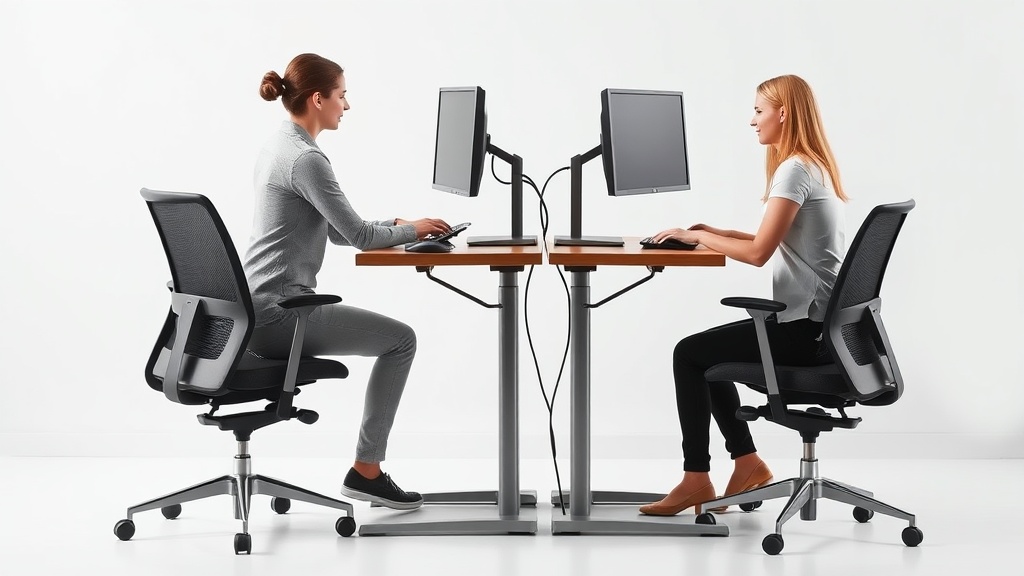
Monitor Arm Positioning Tips to Avoid Neck and Eye Strain
If you spend long hours at your desk staring at a monitor, you’ve likely experienced neck stiffness or eye fatigue. These symptoms often arise from poor monitor placement that forces you into awkward postures or causes your eyes to strain. While ergonomic chairs and keyboards get a lot of attention, many desk workers overlook how critical proper monitor arm positioning is for sustained comfort and health. This article breaks down how you can set up your monitor arm for ideal ergonomics, anchored in measurable fit principles to help avoid neck and eye strain over an 8-hour workday.
What Is Monitor Arm Positioning and Why It Matters
Monitor arm positioning refers to adjusting the height, distance, tilt, and rotation of your computer screen using an adjustable mount or arm rather than a fixed stand. This versatility enables you to fine-tune the screen’s location according to your body’s unique dimensions and workspace layout.
Why is this important? The “fit” of your workstation—similar to how a chair fits your body—is critical to maintaining neutral postures that minimize muscle tension and eye fatigue. Incorrect monitor position can push you into forward head posture, excessive upward or downward gazing, or sideways neck twisting, all of which lead to discomfort and long-term musculoskeletal issues.
It’s also key for eye strain. The ideal monitor location reduces glare, uses appropriate distance for your monitor size and resolution, and supports a comfortable focal length to avoid eye muscle fatigue.
How to Position Your Monitor Arm Correctly: Step-by-Step
Here are practical steps to help you position your monitor arm for ergonomic health:
1. Adjust the Height for Neutral Neck Posture
- Your eye level should be approximately 2–3 inches (5-8 cm) below the top edge of the monitor. This naturally places your gaze slightly downward when looking at the center of the screen.
- To check: sit upright with your head straight and look forward. Adjust the monitor arm height so the top of the screen aligns around eye level or just a bit lower, to avoid tipping the head back.
2. Set the Distance Based on Screen Size and Visual Acuity
- Sit between 20 and 30 inches (50–76 cm) from the screen, roughly an arm’s length. Larger screens may require a slightly longer distance to prevent turning your head excessively to see screen edges.
- Use pressure mapping concepts but for your eyes — too close means more eye muscle effort; too far means squinting or leaning forward.
3. Tilt and Rotate to Minimize Glare and Improve Viewing Angles
- A slight tilt back (10-20 degrees) aligns the screen’s perpendicular plane close to your line of sight.
- Rotate the monitor horizontally to be perfectly centered in front of you. Avoid twisting your neck to compensate for screen location.
4. Optimize for Multiple Screen Use (If Applicable)
- Position primary monitor directly in front. Secondary monitors should be angled inward at about 30 degrees, so you can glance sideways without turning your neck.
- Consider arms that allow independent adjustments for each screen.
5. Take Lighting and Glare Into Account
- Adjust arm placement to avoid light sources reflecting off glossy screens.
- Anti-glare screen filters or matte screens can also help but positioning remains key.
6. Lock in Your Position and Test Over Time
- Make sure all adjustment points on the arm are tightened adequately.
- Test for comfort after 30 minutes, 2 hours, and at the end of your day. Simple hunches or shifts in position are clues to refine settings.
Comparison of Common Monitor Arm Adjustability Features
| Feature | What It Means | Why It Matters for Neck & Eye Health | Typical Range or Standard |
|---|---|---|---|
| Height Adjustability | Vertical travel range of the monitor arm | Enables setting eye-level alignment for neutral neck posture | 10–15 inches (~25–38 cm) |
| Distance/Extension Range | How far the monitor can be moved forward/back | Prevents leaning or squinting, supports proper focal distance | 12–20 inches (30–50 cm) extension |
| Tilt Range | Degrees the screen can be tilted forward/backward | Aligns screen perpendicular to line of sight; reduces glare | About -5° to +20° |
| Rotation | Horizontal swiveling of the monitor | Aligns screen horizontally to body center, avoids neck twist | ±90° or 180° rotation on some arms |
| VESA Compatibility | Standard mounting pattern for screens | Ensures monitor arm fits your monitor securely | 75 x 75 mm or 100 x 100 mm |
A monitor arm with substantial height adjustability and extension range offers the most flexibility to achieve comfortable and strain-free positioning for diverse users.
When to Use a Monitor Arm for Better Ergonomics
- Adjusting for Different Chair Heights or Desk Positions
If you frequently switch chairs, desks, or workstations, a monitor arm lets you recalibrate your monitor height and distance quickly.
- Using Multiple Monitors or Large Screens
Fixed stands rarely accommodate multiple large displays comfortably, while arms allow configuration to suit your visual workflow.
- Shared Workspaces
In offices where desks are shared, monitor arms allow easy resetting to different user needs without clumsy rearrangements.
Common Pitfalls to Avoid When Setting Up Your Monitor Arm
-
Setting the Monitor Too High or Low: This leads to neck tilt or extension, causing strain after prolonged periods. Tools like laser distance meters or smartphone apps can help measure eye-to-monitor height accurately.
-
Positioning the Monitor Too Close or Too Far: Less thought often goes here, but improper distance can cause repeated, subtle eye refocusing, leading to fatigue.
-
Ignoring Glare and Ambient Light: Shiny screens placed in front of windows or direct light sources create glare hotspots that cause you to squint or lean in awkward postures.
-
Neglecting Daily Adjustments: Our bodies change states throughout the day (muscle tension, posture shifts). Occasionally re-centering the monitor arm position can stave off repetitive strain injuries.
Conclusion
Proper monitor arm positioning is essential for avoiding neck and eye strain during long work sessions. By anchoring your adjustments in measurable fit criteria—like seat depth analogs for distance, vertical range for neck alignment, and fine tilt for line-of-sight refinement—you create a balanced setup that supports neutral posture and reduces eye fatigue. Remember, real-day experience (8 hours/day) often reveals discomforts that initial marketing claims gloss over; monitor arms with generous, easy-to-use adjustability deliver real ergonomic benefits when correctly set up and regularly tweaked.
Frequently Asked Questions
Q: How high should my monitor be relative to my eyes?
A: The top edge of your monitor should be about 2–3 inches (5–8 cm) above eye level, so your gaze naturally falls slightly downward to the screen center.
Q: Is there a rule of thumb for screen distance?
A: Generally, an arm’s length (20–30 inches or 50–76 cm) away from the eyes works best, though larger screens may need more distance.
Q: Can a monitor arm reduce eye strain on its own?
A: Positioning helps significantly by optimizing viewing angle and distance, but factors like screen brightness, ambient lighting, and regular breaks are also crucial.
