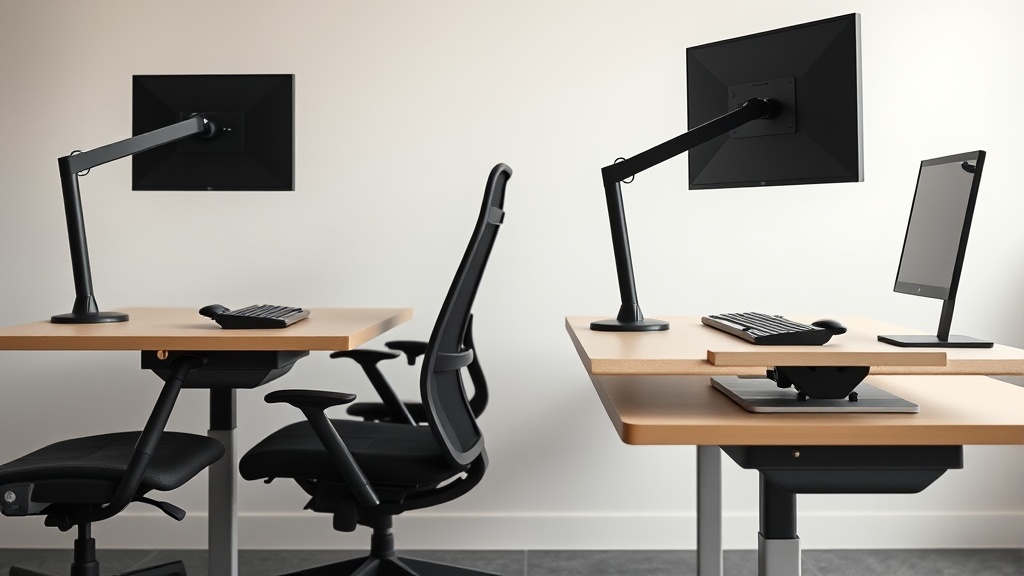
When typing for extended periods, many desk workers struggle with wrist pain, forearm fatigue, and shoulder tension caused by poorly aligned keyboards. Conventional keyboards force your hands into unnatural positions, contributing to discomfort that impacts productivity and long-term joint health. If you’re feeling these symptoms or want to prevent them, exploring keyboards with a split design can offer enhanced ergonomic benefits tailored for sustained comfort.
What Is a Split Keyboard?
A split keyboard is a type of computer keyboard where the keys are divided into two or more physically separated sections. Unlike traditional keyboards with a single rigid layout, split keyboards allow users to position each half according to their natural arm and shoulder posture. This design aims to reduce ulnar deviation (the bending of wrists toward the little fingers), minimize forearm rotation, and promote a more neutral typing posture.
There are variations within split keyboards:
- Fixed Split: The keyboard is split but the two halves are permanently attached at an angle.
- Adjustable Split: The halves can be moved independently on the desk to customize spacing and angle.
- Fully Separable: The two halves are completely detached and connected via a wire or wireless connection, maximizing positioning flexibility.
See also: Ergonomic Keyboard Layouts That Minimize Repetitive Strain Injuries
How Do Split Keyboards Enhance Typing Comfort?
-
Neutral Wrist Alignment
Conventional keyboards place your hands closely together and flat, forcing the wrists to bend outward or rotate unnaturally. Split designs allow your hands to stay shoulder-width apart with wrists in a straight alignment, decreasing the pressure on wrist tendons and nerves. -
Reduced Shoulder and Neck Strain
By positioning each keyboard half under the natural extension of your arms, you prevent the need to hunch or lean to reach keys. This can reduce upper back and shoulder tension, common complaints from desk workers. -
Customizable Ergonomics
Split keyboards often provide adjustable tenting (raising the middle of each half like a tent), tilting, and spacing options. This flexibility accommodates different body sizes and desk setups, which is essential for achieving a truly ergonomic fit — a widely referenced factor in reducing musculoskeletal pain during typing marathons. -
Promotes Better Posture During Extended Use
When paired with a chair offering adjustable lumbar support and armrests with adequate 4D travel (height, width, depth, and pivot), your entire workstation supports healthier postural habits. This systemic alignment is crucial because keyboard comfort is part of an integrated ergonomic ecosystem.
When Should You Consider a Split Keyboard?
- You Experience Repetitive Strain Injuries (RSI) such as carpal tunnel syndrome, tendinitis, or persistent wrist and forearm discomfort.
- You Spend 4+ Hours Per Day Typing and want to prevent the onset of chronic pain.
- You Find Conventional Keyboards Uncomfortable despite adjustments in desk height or chair positioning.
- You Want to Improve Your Workspace Ergonomics holistically, complementing supportive chairs and adjustable desks.
Split keyboards often require an initial adjustment period, so they are ideal if you’re committed to long-term comfort improvements and willing to refine your typing habits.
Common Pitfalls and How to Avoid Them
- Ignoring Seat Depth and Lumbar Adjustability: Without a chair providing proper seat depth (able to support thighs without pressure behind knees) and lumbar support adjustment, even a split keyboard won’t solve your pain problems. Ergonomics is about an entire system, not just one device.
- Overlooking Armrest Adjustability: Armrests that cannot adjust in four directions (height, width, depth, and pivot) might force your elbows into awkward positions that negate wrist improvements from a split keyboard.
- Expecting Instant Comfort: Adaptation can take weeks. Typing speed may reduce initially as your muscles learn the new layout and alignment. Frequent breaks and pressure mapping (if accessible) can guide progressive comfort improvements.
- Selecting a Keyboard Without Considering Key Travel and Feedback: Mechanical vs. membrane key switches impact typing fatigue differently. Choose a keyboard with key feedback that matches your preferences as well as ergonomic needs.
- Neglecting Desk Space Layout: Fully separable split keyboards may require more desk space and proper cable management; make sure your workplace can accommodate these changes gracefully.
Comparison: Types of Split Keyboards and Their Ergonomic Impact
| Feature | Fixed Split Keyboard | Adjustable Split Keyboard | Fully Separable Split Keyboard |
|---|---|---|---|
| Ergonomic Flexibility | Moderate - split angle preset | High - spacing and angle adjustable | Very High - positioning independent |
| Learning Curve | Low to Moderate | Moderate | Moderate to High |
| Desk Space Requirements | Small to Medium | Medium | Large |
| Setup Complexity | Simple - plug and play | Requires adjustment | Setup involves separate halves placement |
| Portability | Moderate | Moderate | Variable - may be easier to pack separately |
| Price Range | Generally more affordable | Mid-Range | Often premium-priced |
| Use Case Recommendations | Users new to split keyboards, want simplicity | Enthusiasts needing custom fit | Power users optimizing for max comfort |
How to Choose the Right Split Keyboard for You
-
Measure Your Shoulder Width and Desk Space
Your ideal keyboard halves should allow your hands to be directly under your shoulders. Measure your natural arm angle and ensure your desk can accommodate the keyboard at the preferred spacing. -
Check Key Layout Compatibility
Some split keyboards modify key layouts (e.g., staggered vs. ortholinear). Confirm that you can work efficiently with the layout, or be prepared to retrain your muscle memory. -
Assess Adjustability Features
Look for keyboards with adjustable tenting and tilting to better match your grip and typing posture. -
Consider Your Typing Style
If you type with a heavier touch or prefer tactile and audible keypresses, mechanical keyswitches may suit you better than membrane keyboards. -
Test if Possible
Try a demo keyboard in an ergonomic store or workplace if available before purchase. Note how your wrists, forearms, and shoulders feel after typing for 8 hours or simulate a full workday if feasible. -
Integrate with Ergonomic Chair and Desk Setup
Ensure your seating and desk setup support proper posture: chair with measured seat depth and lumbar support adjustability, and armrests with full 4D travel to support your forearms without raising your shoulders.
Final Thoughts
Choosing a split keyboard is a worthwhile investment for desk workers committed to reducing typing discomfort and preventing long-term injury. However, comfort gains depend on careful matching of keyboard features with individual body measurements and overall ergonomic setup. Don’t expect a magic fix from the split design alone—combine it with a properly adjusted chair and desk setup to experience the full benefits over hours of daily use.
Frequently Asked Questions
Q: Will a split keyboard improve wrist pain immediately?
A: Not usually; there’s an adjustment period as your muscles adapt to the new posture. Consistency and pairing with good ergonomics help speed improvement.
Q: Can I use a split keyboard for gaming or intensive short bursts?
A: Yes, but some users prefer traditional layouts for retroactive key placement precision. Evaluate based on your usage patterns.
Q: Do I need a special desk to use a split keyboard?
A: No special desk is required, but a desk that allows ample space for positioning the keyboard halves and supporting accessories (like a mouse) helps maximize comfort.
Related reading
- 26. Split keyboards for wrist pain: who they actually help
- Choosing the Best Ergonomic Keyboard for Typing Comfort
- Ergonomic Keyboards That Reduce Wrist Strain Effectively
- Top Keyboards for Comfortable Typing and Reduced Wrist Strain
- Ergonomic Keyboard Layouts That Minimize Repetitive Strain Injuries
