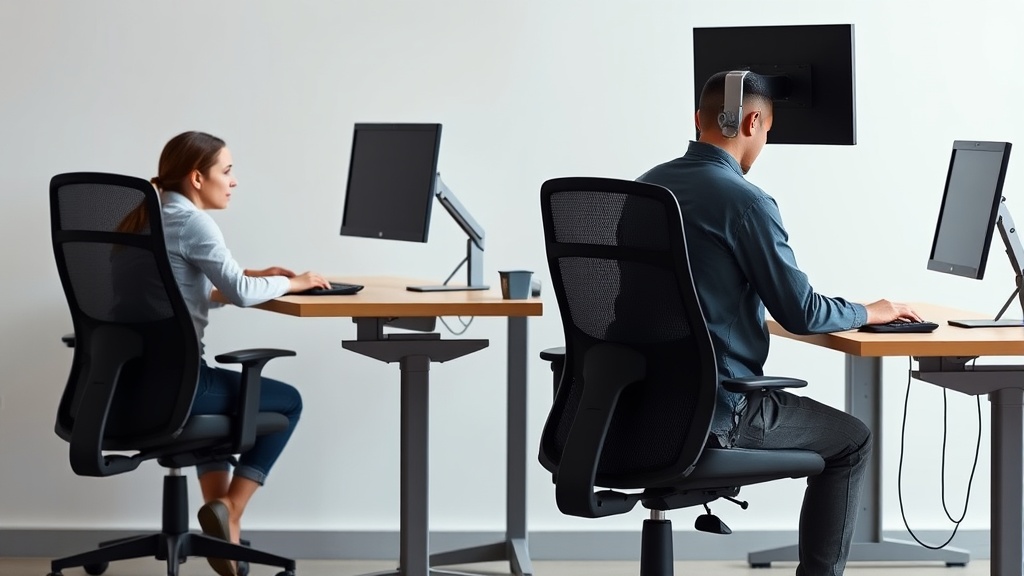
How to Prevent Neck Pain with Proper Monitor Placement
If you’re spending long hours at a desk, chances are you’ve experienced neck stiffness or pain at some point. This discomfort often stems not from your chair or keyboard but from how your monitor is positioned. Neck pain due to poor monitor placement is a common, preventable issue that can seriously affect your comfort and productivity during 8+ hour workdays. In this guide, we’ll detail actionable steps to set up your monitor correctly, explain what ergonomic principles you need to keep in mind, and why small adjustments can make a big difference.
See also: Guide to Proper Keyboard and Mouse Placement for Comfort
Why Monitor Placement Matters for Neck Health
Sitting with your head tilted too far up, down, or to the side forces your neck muscles into awkward positions, leading to strain over time. Even minor misalignment requires your neck to work harder just to keep your gaze on the screen. This tension accumulates, causing soreness, headaches, and potentially long-term posture issues.
Key ergonomic factors influencing neck comfort include:
- Vertical position: Is the top of the monitor roughly at eye level?
- Distance: How far your eyes are from the screen affects neck and eye strain.
- Angle: Can you look straight ahead without tilting your head up or down excessively?
- Multi-monitor setups: Do you need to turn your head frequently? How do you minimize twisting?
Understanding and controlling these factors will make your 8-hour workday far more comfortable.
Step-by-Step: How to Position Your Monitor Properly
Follow these six steps to optimize your monitor placement:
1. Set Your Eye Level
Your line of sight should hit near the top third of the screen or slightly below — not the middle or the bottom. This commonly means the top edge of the monitor is at or just below eye level when you’re sitting upright.
- If your monitor is too low, your neck tilts down.
- If too high, your neck tilts up.
Both are problematic over extended periods.
2. Position the Monitor at an Appropriate Distance
The ideal viewing distance is generally between 20 and 30 inches (about an arm’s length). This prevents your eyes from straining and stops you from leaning forward, which tends to push the neck out of alignment.
A too-close monitor makes you crane your head or squint, while a too-far screen causes forward head posture.
3. Tilt the Screen Slightly
The recommended tilt is usually 10 to 20 degrees backward (top of the monitor leaning slightly away from you). This angle reduces glare and helps keep your neck neutral.
Avoid screens tilted forward or completely flat on the desk, as either forces neck adjustment.
4. Adjust Multi-Monitor Placement to Minimize Head Turning
When using two or three screens, arrange them in a slight curve, so your head turns minimally. Your primary monitor should be directly in front with secondary monitors angled gently inward.
Try to keep the angle of head rotation to less than 15 degrees per side to avoid neck strain.
5. Use a Monitor Arm or Adjustable Stand
Many desk workers benefit from easily adjustable mounts or arms. These enable you to fine-tune height, distance, and angle throughout the day, accommodating changes in posture or task.
Unlike static stands, adjustable arms encourage frequent repositioning, which helps avoid fixed strain points.
6. Check and Reassess Regularly
Your optimal setup isn’t “set and forget.” Periodically reassess placement, especially if you change chairs, desks, or tasks. Monitor your neck comfort and make small changes sooner rather than later.
The Role of Ergonomic Fit: Why Range Matters
Just as an office chair should offer adjustable seat depth, lumbar support range, and 4D armrest movement, your monitor setup benefits from adjustable components:
| Feature | Benefit for Neck Health | Recommended Specification |
|---|---|---|
| Height adjustability | Align monitor top edge at eye level | 4-6 inches height range |
| Forward/backward tilt | Reduce glare, maintain neutral neck posture | 10-20° tilt range |
| Distance adjustment | Keep screen approx. arm’s length away | 20-30 inches (50-75 cm) |
| Swivel/side tilt | Minimize head turning in multi-monitor setups | ±15° per side for minimal neck twist |
| Monitor arm flexibility | Allows dynamic repositioning during the day | Compatible with desk mount systems |
Adjustability ensures you’re not forced into a suboptimal position. Many ergonomic mishaps come from rigid setups that don’t accommodate different user heights or sitting postures.
Taking Pressure Mapping and Posture Into Account
Some companies use pressure mapping to optimize chair and desk setups, but this method highlights a key lesson: one-size-fits-all doesn’t work, especially for monitor placement.
Your ideal monitor height and distance depend on how you sit, the shape of your neck, and even the height of your desk surface. For example:
- Someone with a shorter torso may need the monitor set lower.
- Taller individuals often require taller monitor positioning or a taller chair.
Using an ergonomic checklist (neutral neck, relaxed shoulders) combined with small black-and-white adjustments (like a sticky note to mark your ideal eye line on the wall) can help you find the sweet spot.
Common Pitfalls and Marketing Reality Check
Ergonomic marketing often oversimplifies or oversells monitor setup recommendations. Ads may tout “ergonomic” monitors or simplistic height-adjustable stands but lack:
- Sufficient height range: A stand that only adjusts a couple of inches won’t suit most users.
- Effective armrest and chair synergy: If your chair armrests can’t adjust laterally or in depth, your whole posture shifts, undermining monitor advantages.
- Multi-monitor usability: Many setups forget that frequent head twisting is a key cause of neck pain.
- Durability of adjustment mechanisms: Cheap monitor arms or stands won’t hold position under heavier monitors throughout a long day.
Practical experience shows that spending time on calibration, investing in good chair adjustability (like true 4D armrests), and ensuring your monitor arm has sufficient height and tilt range pays off more than flashy specs.
Monitor Placement Comparison Table: Typical vs Ideal Setup
| Feature | Typical Office Setup | Ideal Ergonomic Setup |
|---|---|---|
| Monitor height | Fixed stand, top edge below eye level | Adjustable stand or arm, top at eye level |
| Viewing distance | 15-18 inches (too close) | 20-30 inches (arm’s length) |
| Screen tilt | Flat or slightly forward | 10-20 degrees tilt backward |
| Multi-monitor arrangement | Side-by-side, flat | Slight curve, primary screen centered |
| Monitor adjustability range | Limited to no adjustability | Height, tilt, swivel adjustments present |
| Head/neck position | Frequent tilting or twisting | Neutral neck and minimal rotation |
The key to preventing neck pain is avoiding the fixed, cramped, or awkward positions common in many typical office setups.
Summary: Key Takeaways
- Keep the top third of the screen at or just below eye level.
- Position the monitor about arm’s length away (20-30 inches).
- Tilt the monitor backward 10-20 degrees to reduce strain.
- Arrange multi-monitor setups in a gentle curve to minimize head turning.
- Use adjustable stands or monitor arms to tweak height and angle throughout the day.
- Combine proper chair adjustability (including 4D armrests) for full ergonomic effect.
- Reassess positioning regularly, especially if discomfort arises.
By focusing on these fundamentals, you can significantly reduce neck pain associated with prolonged computer use.
Frequently Asked Questions
Q: Can using a laptop alone cause neck pain?
A: Yes. Laptops often force users to look down, which stresses the neck. Using a separate monitor, laptop stand, or external keyboard can help maintain proper posture.
Q: How often should I adjust my monitor during the day?
A: Ideally, tiny adjustments every hour or when you change tasks help maintain comfort. Avoid static positions for prolonged periods.
Q: Will just raising my chair solve neck pain issues related to my monitor?
A: Raising your chair may help, but if your monitor stays fixed, your neck might still tilt upward, creating strain. Adjust both chair and monitor height for balance.
Proper monitor placement is a simple but essential step to protect your neck during long workdays. By paying attention to height, distance, and angle — combined with a suitable chair and mindful posture — you’ll stay comfortable and productive with less pain.
