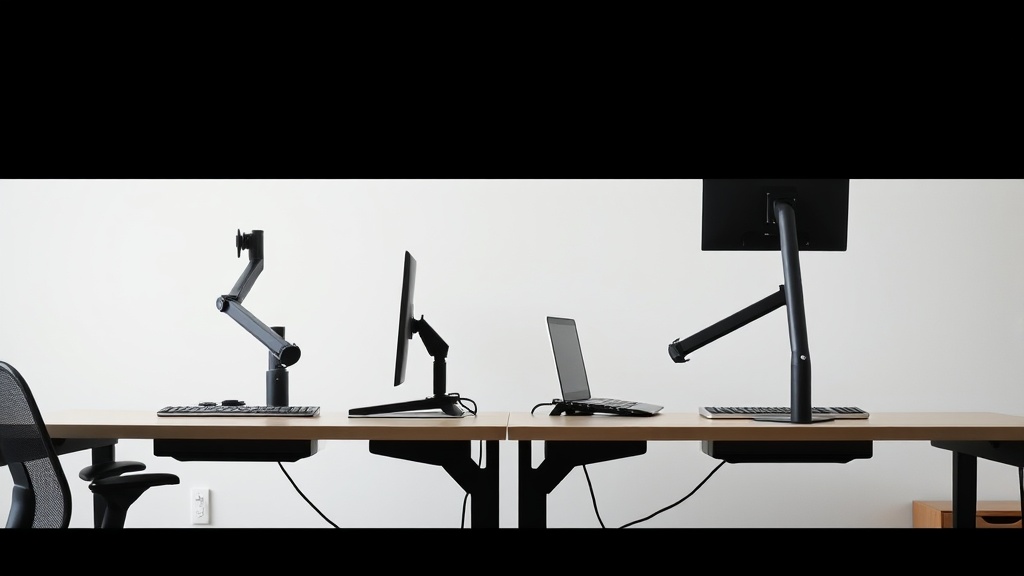
Ergonomic discomfort and eye strain are common complaints among desk workers who use dual monitors daily. Many people think simply placing two screens side-by-side is enough, but improper positioning can lead to neck pain, headaches, and reduced productivity. This article explains how to set up dual monitors in your home office to reduce physical strain and maximize comfort during those long 8+ hour workdays.
Why Ergonomic Positioning of Dual Monitors Matters
Using two monitors allows you to multitask and increases workflow efficiency, but it also demands a more thoughtful setup than a single screen. The key ergonomic challenges to address include:
- Neck and shoulder strain caused by twisting or turning to view one screen more than the other
- Eye fatigue from improper screen height, angle, or distance
- Poor posture resulting from awkward monitor placements that lead to slouching or leaning
Without addressing these factors, multitasking benefits diminish as discomfort accumulates over hours. Ergonomics isn’t about fancy gadgets but about precise measurements — seat depth to seating height, adjustable lumbar support, and in this case, clear principles for screen placement.
See also: Standing Desk Height Adjustment: Finding Your Ideal Position
Step 1: Select Monitors With Matching Sizes and Adjustable Stands
Before positioning, ensure your monitors have similar screen sizes and resolutions to reduce visual fatigue. Ideal dual setups involve identical or near-identical units; if sizes or resolutions differ dramatically, your eyes constantly refocus and adjust, which can strain eye muscles.
Next, opt for monitors with stands that allow height, tilt, swivel, and pivot adjustments. Armrests with 4D travel show how important multi-axis adjustments are for ergonomic fit — the same applies to monitors.
If stands can’t be adjusted adequately:
- Consider VESA-compatible monitors that can be mounted on adjustable arms
- Use monitor risers or height-adjusting platforms
Step 2: Decide on an Arrangement Based on How You Use Your Monitors
There are three common layouts for dual monitors:
- Symmetrical side-by-side: Both screens directly in front of you, with the seam between them centered.
- Primary and secondary monitor offset: One main monitor is straight ahead, and the secondary is angled off to one side.
- Stacked (one above the other): Less common but used in limited desk depth situations.
Choosing an arrangement depends on your workflow:
- If you split work equally, a symmetrical layout reduces neck twists.
- If you primarily use one screen and refer to the other occasionally, offsetting helps you focus on the main screen without constantly moving your head.
- Stacked arrangements can cause more neck flexion, so they usually require a monitor with height adjustability.
Step 3: Position the Monitors for Optimal Viewing Distance and Height
-
Distance: For most people, the ideal viewing distance is about an arm’s length (20-30 inches or ~50-75 cm). This distance reduces eye strain and accommodates natural eye movement between screens.
-
Height: Align the top third of the monitor screen with eye level when seated upright. This approximately matches the natural resting gaze angle (slightly downward).
-
Angle: Tilt the monitors slightly backward (10-20 degrees) to reduce glare, and angle them inward so your eyes glance naturally when switching screens.
In a symmetrical setup, place the monitors so the centers are about 15-30 degrees from your midline. If you use a primary/secondary offset, position the main screen directly in front and angle the secondary one about 30-45 degrees to the side.
Step 4: Minimize Physical and Visual Strain by Proper Ergonomic Practices
- Avoid excessive neck rotation. Your head should stay mostly facing forward, with only small eye and head movements turning between screens.
- Check chair and desk setup. Seat depth should allow your back to rest fully against the lumbar support while knees are roughly at hip level.
- Use lighting to reduce glare. Position monitors perpendicular to windows to reduce reflections.
Step 5: Use Tools Like Pressure Mapping and Posture Sensors (Optional for Long-Term Comfort)
If you’re investing in an ergonomic setup beyond basic adjustments, pressure mapping technology can inform better seat and posture adjustments. Though typically used for chairs, the principles apply to dual monitor positioning—measuring tension and strain in the neck and shoulders can help verify if your setup encourages natural posture over an 8-hour day.
Comparison Table: Dual Monitor Positioning Layouts
| Layout | Ideal Use Case | Neck Movement | Ease of Setup | Space Requirements | Notes |
|---|---|---|---|---|---|
| Symmetrical Side-by-Side | Equal work on both screens | Minimal (slight rotation) | Moderate | Wide desk | Best for multitasking, reduces muscle strain |
| Primary + Secondary Offset | Heavy primary monitor use | Some rotation (to side) | Easy | Moderate | Keeps main screen front and center |
| Stacked (Vertical) | Limited desk depth, vertical workflow | Neck flexion and extension | Complex | Small desk depth | Can cause neck strain, best with height-adjustable monitors |
Common Pitfalls to Avoid
- Ignoring height alignment: Too high or too low causes neck strain.
- Unequal distances between eyes and screens: Forces constant focus refocusing.
- Over-rotation of the head: Over time, this leads to chronic neck and shoulder pain.
- Poor lighting and glare management: Causes eye fatigue even with perfect monitor placement.
- Neglecting seating ergonomics: Even a perfect monitor setup fails if chair and desk aren’t properly adjusted for lumbar support and seat depth.
Summary
To position dual monitors ergonomically:
- Match sizes and use adjustable stands or arms.
- Choose symmetrical or offset arrangements based on screen usage.
- Set viewing distance at an arm’s length and align the top third of screens with eye level.
- Angle monitors inward to reduce neck strain.
- Check seating posture, armrest adjustments, and lighting to complement your setup.
- Avoid common mistakes like mismatched heights, excessive head rotation, and poor lighting.
By following these steps, you can expect reduced discomfort, prolonged productivity, and more sustainable screen time quality throughout your workday.
Frequently Asked Questions
Q: How far apart should dual monitors be placed?
A: The centers of the monitors should be about 15-30 degrees from your midline, with screens roughly an arm’s length away (20-30 inches). This allows natural eye movement with minimal head rotation.
Q: Can I use different sized monitors side by side?
A: It’s best to use monitors of the same size and resolution to avoid eye strain caused by different focal distances and refresh rates. If different sizes are necessary, position the larger or primary monitor directly in front.
Q: What if my desk doesn’t have enough space for side-by-side monitors?
A: Consider a stacked (vertical) setup or use mount arms that allow you to position one monitor above the other. Just be aware that vertical arrangements may increase neck flexion, so height adjustability is crucial.
