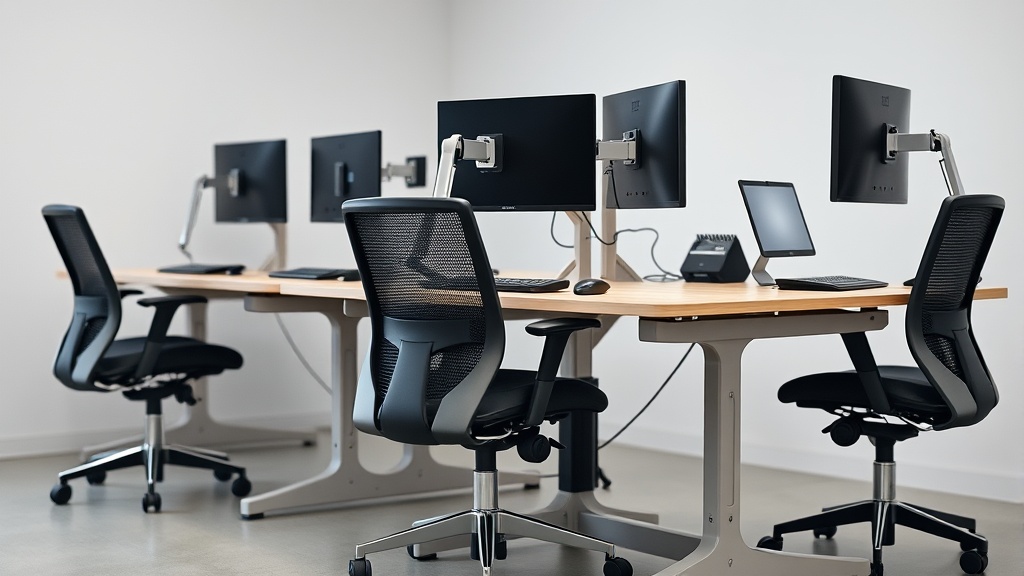
Remote work has made desks everywhere into makeshift offices, but not all home setups support healthy, productive work habits. If your employees complain about back pain, wrist strain, or fatigue after an eight-hour workday, their workspace isn’t truly ergonomic. Designing an ergonomic workspace for remote employees means paying close attention to fit, adjustability, and realistic daily use—not just fancy marketing copy.
What Is an Ergonomic Workspace for Remote Employees?
An ergonomic workspace is a setup that maximizes comfort, supports natural postures, minimizes strain, and reduces the risk of musculoskeletal issues during long periods of desk work. For remote employees, this often means transforming a home environment—which may be less ideal than an office—into a functional, health-conscious space.
Key components include:
- Seating with proper lumbar support, adjustable seat depth and height, and armrests that accommodate various arm positions (ideally with 4D travel: height, width, depth, and pivot).
- A desk positioned to maintain neutral wrist and forearm angles.
- Monitor placement to reduce neck strain and eye fatigue.
- Consideration of lighting, keyboard, and mouse positioning to enhance comfort.
The goal is a customized or adaptable space that fits the individual’s body dimensions and work habits, especially important when sitting for 8+ hours daily.
See also: Improving Posture with Ergonomic Home Office Furniture
How Ergonomics Works in Remote Workspaces
Ergonomics uses evidence-based principles to reduce repetitive strain and ensure comfort over time. For example:
- Seat depth: If too shallow, it fails to support thighs fully; too deep, and it may press behind the knees, impeding circulation. Adjustable seat depth is critical for all body types.
- Lumbar support: Lower back curvature varies between individuals, so an adjustable lumbar support helps maintain the natural inward curve and reduces lower back pain.
- Armrests with 4D adjustability (up/down, in/out, forward/backward, pivot) let users relax their shoulders, support forearms appropriately, and avoid wrist or neck strain.
- Pressure mapping technology, though not commonly available for personal home setups, illustrates areas with excess pressure that can restrict circulation or cause discomfort over time. Chairs designed with pressure-distribution in mind typically have memory foam or gel cushions to soften contact points.
Marketing materials often tout “ergonomic design” without clarifying whether their products truly accommodate fit and adjustability required for prolonged use. Because remote workers spend long hours in one spot, chairs and desks need realistic flexibility—not just “stylish” or “comfortable” on first sit.
Steps to Designing an Ergonomic Workspace for Remote Employees
1. Assess the Employee’s Needs and Space Limitations
- Measure the employee’s height, leg length, and arm length if possible.
- Understand the space constraints: desk size, room lighting, and room temperature.
- Identify any existing pain or strain issues.
2. Choose a Chair That Supports Adjustability and Fit
Look for chairs offering:
- Seat depth adjustment: To fit thigh length and distribute weight evenly.
- Lumbar support with adjustable height and firmness: To accommodate natural spinal curvature.
- 4D armrests: To enable comfortable positioning when typing or using a mouse.
- Seat height adjustment: So feet rest flat on the floor or a footrest.
Emphasize that a chair feeling comfortable for 10 minutes is not enough; it must support hours of sitting.
3. Position the Desk Properly
- Desk height should allow forearms to rest parallel to the floor or slightly declined when typing.
- If the existing desk is not height-adjustable, consider an adjustable keyboard tray or a desk riser.
- Encourage use of a footrest if the chair height adjustment results in feet dangling.
4. Set Up Monitors at Eye Level
- The top of the monitor screen should be roughly at or slightly below eye height.
- Distance should be about an arm’s length away to prevent leaning forward.
- Dual monitors should be arranged so the primary monitor is directly in front; if dual use is significant, arrange screens in a slight curve to minimize neck rotation.
5. Optimize Keyboard and Mouse Placement
- Keep both devices close enough that elbows stay near the body.
- Keyboard tilt should not force wrist extension; flat or slightly negative tilt is preferable.
- Use keyboard trays or desktop space to avoid reaching or twisting wrists.
6. Implement Lighting and Reduce Glare
- Use adjustable task lighting to avoid eye strain.
- Position monitors perpendicular to windows to reduce glare.
- Encourage breaks and screen adjustment to reduce blue light fatigue.
7. Educate on Movement and Breaks
- Encourage microbreaks every 20-30 minutes to stand, stretch, or walk.
- Provide guidance on posture resets.
- Consider timers or software prompts for reminders.
Comparison Table: Key Workspace Elements and Their Impact on Remote Work Comfort
| Element | Adjustable Feature | Impact on All-Day Comfort | Common Pitfalls |
|---|---|---|---|
| Chair Seat Depth | Adjustable depth (front to back) | Supports thighs fully, prevents circulation pressure | Fixed seat often too deep/shallow for most users |
| Lumbar Support | Adjustable height and firmness | Maintains natural lower spine curve, reduces back pain | No adjustability causes poor posture |
| Armrests | 4D adjustability (height, width, depth, pivot) | Enables relaxed shoulders and neutral wrists | Fixed armrests cause shoulder strain or wrist angling |
| Desk Height | Adjustable height or keyboard tray | Proper elbow angle, prevents shoulder elevation | Fixed desks often too high or low |
| Monitor Position | Height and distance adjustable | Prevents neck flexion/extension and eye strain | Monitor too low/high causes neck pain |
| Lighting | Adjustable task lighting | Minimizes eye strain and headaches | Overhead lighting causing glare |
Common Mistakes to Avoid When Designing Remote Workspaces
- Ignoring individual fit: One-size-fits-all is ineffective, leading to discomfort over time.
- Choosing style over ergonomics: A trendy chair might lack proper adjustability.
- Underestimating the importance of armrest adjustability: Arm support is crucial for sustained typing/mousing.
- Neglecting monitor placement: Neck strain is a common issue from improper screen height or distance.
- Overlooking the impact of lighting: Poor lighting exacerbates fatigue and eye issues.
- Assuming employees will take breaks without reminders: Movement helps prevent stiffness and promotes circulation.
Making Realistic Choices: Understanding Marketing Copy vs 8-Hour Use
Many chairs and desks are marketed as “ergonomic” based on a checklist of features or aesthetics. However, the reality of sitting 8 hours daily requires verified adjustability ranges.
- Fit range matters: A chair may claim adjustable lumbar support, but if the range suits only average spine sizes, taller or shorter users suffer.
- Try before buy if possible: Encourage remote employees to test chairs or consult third-party reviews focused on pressure-mapping or comfort during sustained use.
- Adjustability beats cushions: Extra padding helps comfort initially but doesn’t replace proper fit and support.
Conclusion
Designing an ergonomic remote workspace requires a careful balance of personalized fit, true adjustability, and task-specific positioning. By focusing on seat depth, lumbar support, 4D armrests, desk and monitor height, and lighting, remote employees can enjoy healthier, more comfortable days—and employers benefit from happier, more productive teams.
Frequently Asked Questions
Q: How important is seat depth adjustment for remote workers?
A: Extremely important. Seat depth that matches thigh length prevents excess pressure behind the knees and distributes weight evenly, promoting circulation and comfort during long sitting periods.
Q: Can I rely on armrest height adjustment alone?
A: No. Armrests need 4D adjustability—height, width, depth, and pivot—to accommodate different postures and tasks, reducing shoulder and wrist strain.
Q: How often should remote workers take breaks to prevent discomfort?
A: Ideally, take microbreaks every 20-30 minutes to stand, stretch, and reset posture. This reduces muscle fatigue and improves circulation.
