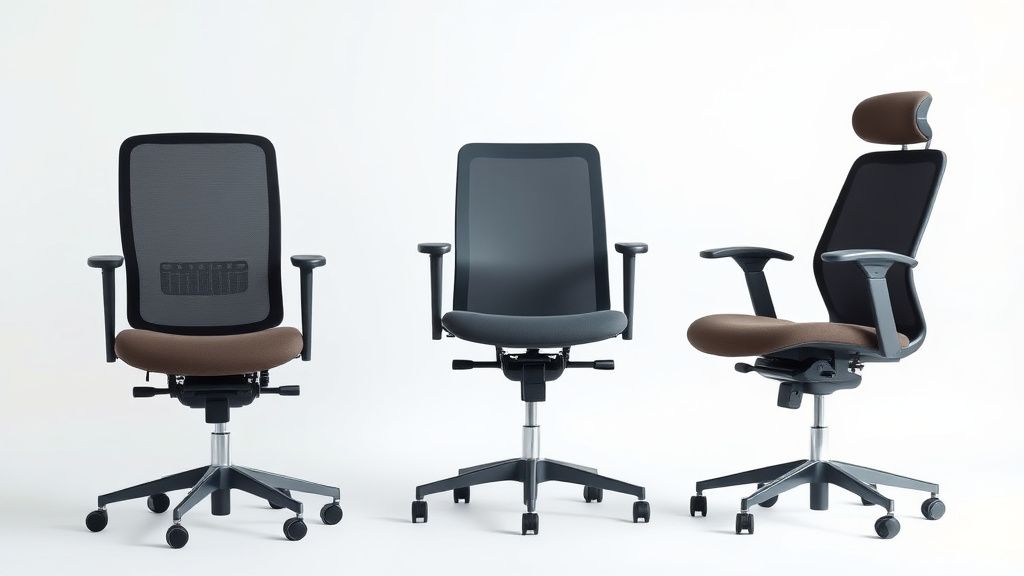
Desk Setup Makeover: Integrating Your New Ergonomic Chair for Optimal Health
Upgrading to an ergonomic chair is a game-changer for your posture, comfort, and productivity—but only if you integrate it correctly into your workspace. A chair alone won’t solve all your problems; proper setup and complementary accessories are key. Here’s how to optimize your desk setup around your new ergonomic chair for long-term health benefits.
Why Your Chair Needs a Thoughtful Setup
An ergonomic chair is designed to support your spine, reduce pressure points, and encourage movement. However, pairing it with the wrong desk height, monitor placement, or keyboard setup can negate its benefits. Poor alignment leads to slouching, neck strain, and fatigue. By adjusting your entire workstation to work with your chair, you’ll maintain better posture and avoid discomfort.
Step 1: Adjust Your Chair First
Before tweaking anything else, dial in your chair’s settings:
- Seat Height: Your feet should rest flat on the floor (or a footrest) with knees at a 90-degree angle.
- Seat Depth: There should be about 2-3 fingers’ space between the seat edge and the back of your knees.
- Lumbar Support: Adjust the curve to fit the natural inward arch of your lower back.
- Armrests: Set them so your elbows rest at 90 degrees, shoulders relaxed.
- Tilt & Recline: A slight recline (100-110 degrees) reduces spinal pressure.
Step 2: Match Your Desk to Your Chair
Your desk height should complement your chair’s adjustments:
- Fixed-Height Desks: If your desk is too high, raise your chair and use a footrest. If too low, consider adjustable legs or a new desk.
- Adjustable Desks: Set the surface at elbow height when seated, allowing your forearms to rest parallel to the floor.
- Keyboard Tray: If your desk is deep, a pull-out tray keeps your keyboard and mouse at the right height (close to lap level).
Step 3: Position Your Monitor Correctly
Screen placement is critical to avoid neck strain:
- Height: The top of your monitor should be at or slightly below eye level, about an arm’s length away.
- Dual Monitors: Center your primary screen, and angle the secondary one inward.
- Laptop Users: Use a stand to raise the screen to eye level and pair it with an external keyboard/mouse.
Step 4: Add Complementary Accessories
Enhance your setup with ergonomic extras:
- Footrest: Essential if your feet don’t reach the floor after adjusting your chair.
- Monitor Arm: Frees up desk space and allows precise screen positioning.
- Document Holder: Places reference materials at eye level to reduce neck twisting.
- Anti-Fatigue Mat: For standing desk users, cushioning reduces joint stress.
Step 5: Cultivate Healthy Habits
Even the best setup won’t help if you sit statically for hours:
- Movement: Shift positions, stretch, or stand periodically.
- Microbreaks: Every 30 minutes, take a 1-2 minute break to reset posture.
- Walking Meetings: Swap seated calls for walking when possible.
What to Look for in an Ergonomic Chair
Not all chairs are created equal. Key features to prioritize:
- Adjustability: Look for seat height, depth, lumbar support, armrests, and tilt tension controls.
- Material: Breathable mesh backs prevent overheating; cushioned seats should distribute weight evenly.
- Mobility: Smooth-rolling casters (for hard floors or carpets) and a stable base.
- Dynamic Support: Chairs with synchronized or waterfall seat edges encourage movement.
Final Thoughts
A true ergonomic upgrade involves more than just a chair—it’s about creating a cohesive system that supports your body. Take the time to adjust each component mindfully, and your back, neck, and shoulders will thank you. Pair your setup with healthy movement habits, and you’ll transform your workspace into a long-term haven for productivity and well-being.
