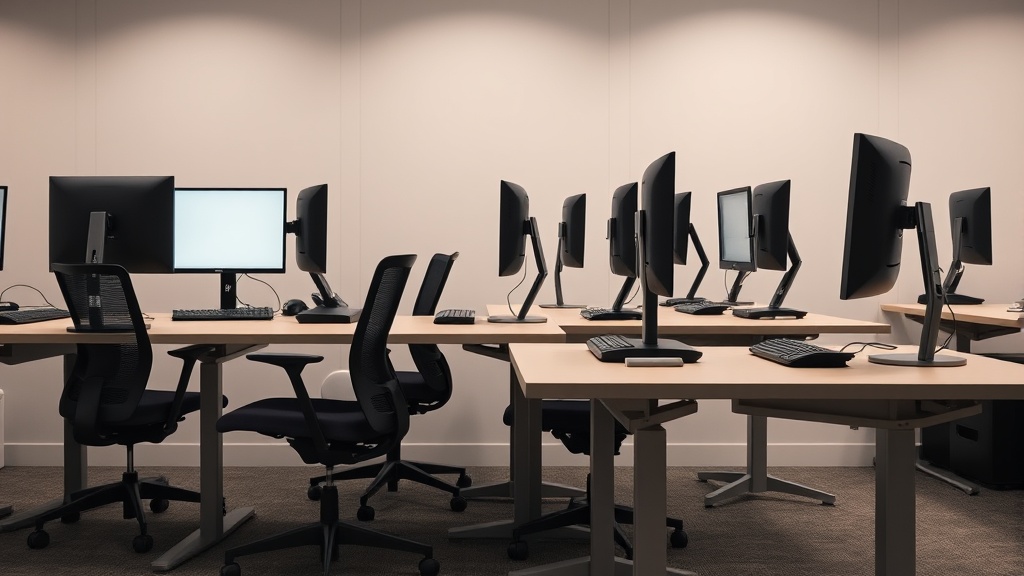
Setting up a second screen can greatly improve productivity for desk workers, but many fall into the trap of positioning their monitor too low or off to the side, causing them to look down or twist their neck all day. This leads to neck and shoulder strain, headaches, and general discomfort — the exact problems ergonomic furniture aims to solve. To truly benefit from dual monitors during an 8-hour workday, you need a setup that respects human biomechanics, integrates well with your chair and desk ergonomics, and aligns with your workflow.
Why Proper Second Screen Positioning Matters
Using two screens isn’t just about having more digital real estate; it’s about reducing physical strain across your workday. Poor second screen placement typically results in:
- Flexed or extended neck postures (looking down or to the side)
- Repetitive twisting or tilting of the head
- Overreaching with the arms to interact with the screen or keyboard
- Uncomfortable shoulder elevation or hunching
All of these issues increase muscle fatigue, contribute to cumulative trauma, and reduce your ability to focus after a few hours. An ergonomically sound second screen setup balances fit (seat depth and lumbar support height), reach (armrest adjustability), eye level, and minimizes awkward postures — even if it means adjusting your chair or desk simultaneously.
See also: How to Position Dual Monitors Ergonomically in Your Home Office
How To Set Up a Second Screen Without Looking Down All Day: Step-by-Step
1. Adjust Your Primary Chair and Desk Position First
Before even touching your monitor, optimize your chair and desk for proper posture:
- Seat depth: Make sure your thighs are fully supported but not pressed tightly against the chair edge. This usually means 1-2 inches between the seat edge and the back of your knees.
- Lumbar support: Adjust the lumbar support height so it fills the natural curve of your lower back.
- Armrests: Customize your armrest height, width, and depth (4D adjustability) so your elbows rest comfortably at about a 90-degree angle without shrugging shoulders.
Once your seating is dialed in, your head and eye position will be more stable and predictable for proper monitor alignment.
2. Position Your Primary Screen at Eye Level and Directly In Front
Your primary monitor should occupy the center of your visual field. The top of your screen should be at or slightly below eye level so your neck remains neutral. If you use a laptop, consider a dedicated stand or external keyboard to maintain this alignment.
3. Measure and Position Your Second Monitor for Minimal Neck Movement
The key consideration with a second screen is how often you’ll be glancing at it and whether it needs to be aligned horizontally with your primary monitor.
- For frequent dual-screen use: Place the second screen adjacent to the primary with their edges approximately flush, forming a slight inward curve if possible.
- For occasional reference: Position the second screen further off to the side (up to 45 degrees) but keep in mind the strain this posture creates if overdone.
Aim to have the top of the second monitor aligned horizontally or slightly lower than the primary. Tilt the monitor slightly upward (around 10-15 degrees) to better match your typical gaze angle and reduce looking down.
4. Optimize Distance to Both Screens
Ideal viewing distance depends on screen size but generally:
- Sit about an arm’s length away (20-30 inches) from each monitor
- Adjust slightly forward or backward based on text size and screen resolution clarity
- Verify sharpness and readability without needing to lean forward, which stresses posture
5. Use External Adjustable Monitor Arms if Possible
A monitor arm with height, depth, tilt, and swivel adjustability is the most ergonomic and flexible solution for dual screens. It allows you to fine-tune positioning on the fly and avoids the need for stacking books or awkward stands that promote incorrect neck angles.
6. Use Physical Cues or Software to Manage Workflow and Reduce Strain
Your body tends to move towards what it uses. If you glance at the second monitor constantly, the improper setup penalty compounds quickly.
- Arrange apps so that you mostly keep your head facing forward
- Use keyboard shortcuts and window management software to organize screen real estate efficiently
- Take frequent breaks or do micromovements like gentle neck rolls to prevent static posture fatigue
Comparison of Common Second Screen Setup Strategies
| Setup Style | Pros | Cons | Best for |
|---|---|---|---|
| Side-by-side, flush edges | Easy ergonomic posture with minimal strain | Requires sufficient desk width | Frequent dual-screen active use |
| Offset screen at 30-45 degrees | Saves desk space, flexible viewing angles | Causes neck twisting/strain if used long | Secondary reference monitor, sporadic use |
| Stacked vertical (one above another) | Less side neck rotation, more vertical reach | Can cause significant downward gaze | Limited desk width, vertical multi-tasking |
| Laptop + external monitor | Flexibility, ergonomic if using stand and external keyboard | Often causes downward gaze on laptop screen | Mobile work, hybrid setups |
What About Seat Depth and Armrest Adjustability?
Ergonomics isn’t only about your monitors. Your chair fit — specifically seat depth and armrest adjustability — dramatically influences how comfortably you can orient your head and arms to access your screens.
- Seat depth: If your chair’s seat pan is too deep, you may slide forward to see your screens clearly, losing lumbar support and increasing neck flexibility demands.
- Armrests: 4D armrests (height, width, depth, and pivot) allow for perfectly aligned forearms when typing or using a mouse. This alignment reduces shoulder shrugging or forward leaning toward the screen.
Fine-tuning your chair to match your monitor setup promotes sustainable comfort for long sessions.
When to Consider Pressure-Mapping
Pressure-mapping is a useful tool to objectively assess how your sitting posture distributes weight and where you may be unknowingly placing pressure on sensitive areas. It can:
- Reveal if your chair’s seat cushion fits you well for long durations
- Detect micro-movements you aren’t aware of that indicate discomfort or poor alignment
- Help justify adjustments or chair/desk upgrades when paired with monitor repositioning
While not necessary for all, pressure-mapping supplements ergonomic monitor setup decisions, especially for users with existing pain or discomfort.
Important Real-World Considerations: Marketing vs. Actual Use
Many monitor stands or ergonomic claims advertise perfect posture or effortless comfort. Yet, after hours of work, small misalignments add up:
- Marketing images often show users glancing straight ahead or to a single side, but real workflows require repeated glances in multiple directions.
- Adjustable features only help if users fine-tune carefully; too many people leave setups on default or “just floating.”
- The difference between looking down a few degrees and 15-20 degrees dramatically affects muscle strain, which isn’t always obvious until pain builds over days.
In short, trust your body feedback, measure carefully, and don’t accept a setup just because it’s marketed as “ergonomic.” What feels comfortable at hour one must hold for hour eight.
Summary Checklist for Dual-Monitor Ergonomics
- ✅ Chair seat depth supports full thighs with clearance behind knees
- ✅ Lumbar support fills your lower back curve
- ✅ 4D armrests maintain relaxed shoulders with forearms parallel to desk
- ✅ Primary monitor top edge at or just below eye level, centered
- ✅ Secondary monitor top edge aligned or slightly lower, tilted up slightly
- ✅ Both screens approximately an arm’s length distance away
- ✅ Use monitor arms to tweak height/angle/depth without stacking books
- ✅ Arrange programs to minimize excessive head rotation or downward gaze
- ✅ Take micro-breaks and monitor your posture during the day
- ✅ Use pressure-mapping if persistent discomfort or uncertainty persists
Frequently Asked Questions
Q: Can I use two different-sized monitors without ergonomic problems?
A: Yes, but balance is key. Position the larger or primary screen so its top edge matches your eye level, then stack or tilt the smaller screen to align horizontally or slightly lower to avoid neck strain.
Q: How high should my dual monitors be relative to my eyes?
A: Ideally, the top edge of the monitor(s) should be at or just below eye level, so your gaze naturally falls slightly downward onto the screen — about a 15-degree declination angle is comfortable and reduces neck flexion.
Q: Why do I feel more neck pain even though my monitors are “adjustable”?
A: Adjustable doesn’t guarantee correct movement or fit. Often, poor chair fit, fixed desks, or not fine-tuning armrests and monitor tilt cause subtle posture stresses that add up over hours — ensure all ergonomic factors align for your body size and workflow.
