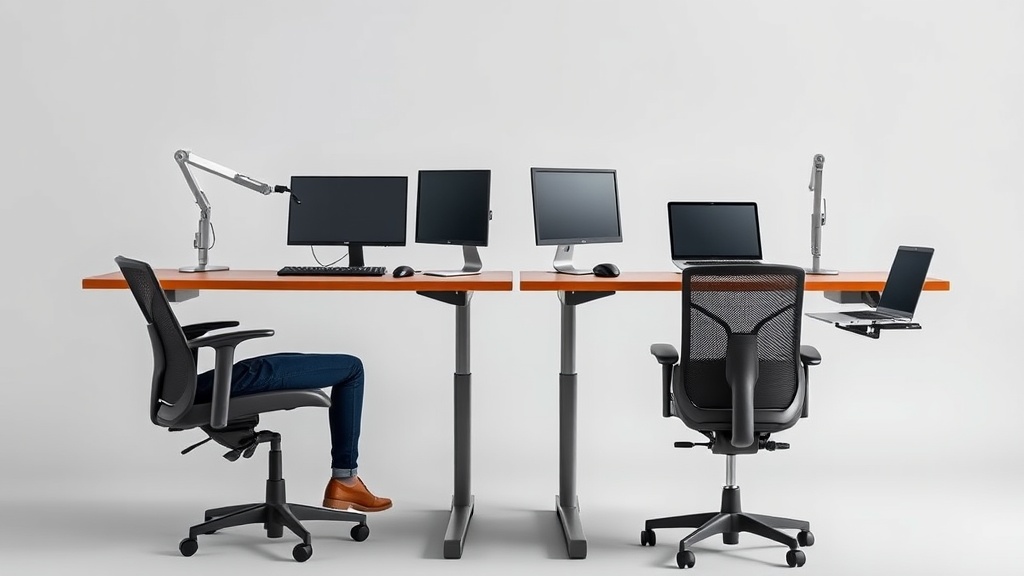
When you work long hours on a laptop, the tiny screen and cramped workspace can seriously affect your productivity, comfort, and posture. Choosing the right external display size—24 inches, 27 inches, or 32 inches—is a core decision that impacts your desk setup ergonomics, how much screen real estate you get, and how comfortable you’ll be over extended use. This article compares these common monitor sizes to help you pick what fits your workflow and workspace best.
What External Display Size Means for Laptop Users
Laptop screens typically range from 13 to 17 inches, and while portable, they are often too small for multitasking or detailed work. An external monitor boosts your usable screen area, making it easier to keep multiple windows open, view large spreadsheets, or work with creative tools. However, just adding a bigger screen isn’t enough; understanding how the display size relates to desk space, viewing distance, and ergonomics is key.
The most popular external display sizes for laptop users wanting a desktop experience are 24, 27, and 32 inches. Each size offers a distinct balance of screen space, pixel density (sharpness), and workspace footprint.
See also: Adjustable Lighting Solutions for a Comfortable Home Office
How Screen Size Impacts Ergonomics and Usability
Viewing Distance and Angle
Screen size must be matched to your typical viewing distance to minimize eye strain and neck pain. The bigger the display, the farther back you should sit, and the more adjustment you need to keep your posture neutral.
- 24-inch monitors work well at distances around 20-24 inches (50-60 cm). This fits average desktop depths.
- 27-inch monitors are best viewed at 24-30 inches (60-75 cm), requiring a bit more desk depth or arm reach.
- 32-inch monitors demand 30-36 inches (75-90 cm), needing ample desk space and possibly an adjustable monitor arm for position.
Seat Depth and Lumbar Support Considerations
Your ergonomic chair’s lumbar support and seat depth need to work with the monitor size you pick. For bigger displays, chairs with adjustable lumbar support and a deeper seat help you maintain back posture while allowing a proper distance from the screen, avoiding leaning forward or slouching.
Resolution and Pixel Density
Monitor size without resolution context isn’t enough. Most monitors at these sizes have 1080p, 1440p (QHD), or 4K resolutions.
- A 24-inch 1080p screen has good pixel density (~92 PPI), ideal for sharp text and detail without scaling.
- At 27 inches, 1080p is less sharp (~81 PPI), so 1440p is preferred for clarity.
- For 32 inches, 1440p is minimum; 4K is optimal to keep pixel density high (~140 PPI) and avoid visible pixels at normal viewing distances.
Matching screen size and resolution is crucial. Too big + low resolution = pixelated text, too small + high resolution = tiny UI elements needing scaling (which can cause inconsistency in apps).
Comparing 24 vs 27 vs 32 Inch Displays for Laptop Users
| Feature / Aspect | 24-inch Monitor | 27-inch Monitor | 32-inch Monitor |
|---|---|---|---|
| Ideal Viewing Distance | 20–24 in (50–60 cm) | 24–30 in (60–75 cm) | 30–36 in (75–90 cm) |
| Desk Space Required | Compact footprint, fits smaller desks | Moderate footprint, needs depth | Large footprint, requires spacious desk |
| Recommended Resolution | 1080p or 1440p | 1440p (ideal), 1080p (less ideal) | 1440p minimum, 4K optimal |
| Pixel Density (@1080p) | ~92 PPI | ~81 PPI | ~69 PPI (low sharpness) |
| Pixel Density (@1440p) | ~138 PPI (high for 24”) | ~109 PPI | ~92 PPI |
| Ergonomic Fit | Easier to keep fully in view and at proper angle | Good balance if viewing distance set correctly | May require neck rotation, chair + arm adjustment |
| Multitasking Ease | Moderate; two apps side by side | Good; multiple windows comfortably | Excellent; large working canvas |
| Price Range | More budget-friendly | Mid-range for quality models | Higher, especially 4K panels |
| Best For | Small desktops, limited space, max sharpness on budget | Balanced everyday use, office multitasking | Creative work, detailed spreadsheets, multiple simultaneous apps |
| Common Pitfall | Limited screen real estate | Some users choose 1080p and get pixelation | May overwhelm small desks; poor scaling without proper setup |
Balancing Ergonomics and Productivity
Arm Rest and Shoulder Positioning
When upgrading to larger monitors, your chair’s armrest adjustability becomes relevant. 4D adjustable armrests (height, depth, pivot, and width) allow you to keep your forearms supported at the right height without crowding your workspace. The bigger the screen, often the more you’ll reach horizontally, so a properly adjusted armrest helps protect your shoulders from strain.
Pressure Mapping and Duration of Use
Long hours at the desk mean you need a chair and monitor setup that reduces pressure points. Pressure mapping studies show how seat depth and backrest contour affect comfort; similarly, if your monitor size forces you to alter your seating position awkwardly (e.g., leaning forward because text is too small or screen too large), you’ll increase pressure in your lower back and hips.
Ergonomic comfort is as much about the time you spend with a setup as it is about the specs on paper. When testing monitors, track how many hours you feel comfortable before experiencing fatigue or eyestrain.
Practical Advice: Choosing the Right Size
- Measure Your Desk and Seating Distance: Use a tape measure to see how much space you have and how far your chair will naturally sit from the screen.
- Match Display Size With Resolution: Avoid low-resolution large monitors to keep text sharp and prevent eye strain.
- Consider Your Work Style:
- Frequent multitaskers with window splitting benefit from 27” or 32”.
- Document writers or coders on a budget may prefer 24” for crisp text.
- Ergonomic Adjustments: Ensure your chair’s lumbar and seat depth settings work well with your monitor setup. Use a monitor stand or arm if needed.
- Test Viewing Comfort: If possible, visit a store or office setup to see how each size feels over 20-30 minutes. This replicates the 8-hour experience better than specs alone.
Common Pitfalls When Upgrading to a Larger Display
- Buying a 32” 1080p to save money but ending up with pixelated text that causes eye fatigue.
- Not accounting for desk depth and ending with a display that you have to move your head excessively to view comfortably.
- Using the laptop’s keyboard alongside a monitor too far away, leading to poor posture or constant leaning forward.
- Neglecting ergonomic adjustability on the chair, armrests, or monitor height, resulting in longer-term discomfort.
- Ignoring glare and reflections which can become more problematic on bigger screens at certain angles.
Frequently Asked Questions
Q: Can I use a 32-inch monitor on a small desk?
A: It’s possible but not ideal. You need enough depth (30+ inches) to maintain ergonomic viewing distance. A too-small desk means you may sit too close, causing neck strain and eyestrain.
Q: Is 4K resolution necessary for 27-inch monitors?
A: No, 1440p is typically sufficient for 27-inch displays, offering a good balance of sharpness without demanding as much from your GPU or expensive hardware.
Q: How important is armrest adjustability with bigger monitors?
A: Very important. 4D adjustable armrests help support your arms properly as you reach forward or sideways, reducing shoulder and neck tension over extended use.
Choosing between 24, 27, and 32-inch external displays for your laptop boils down to your desk space, work habits, and commitment to ergonomics. Bigger is not always better if it compromises posture or comfort across an 8-hour day. Prioritize measured fit and consider appropriate resolution alongside the size to enjoy a healthy, productive workstation.
