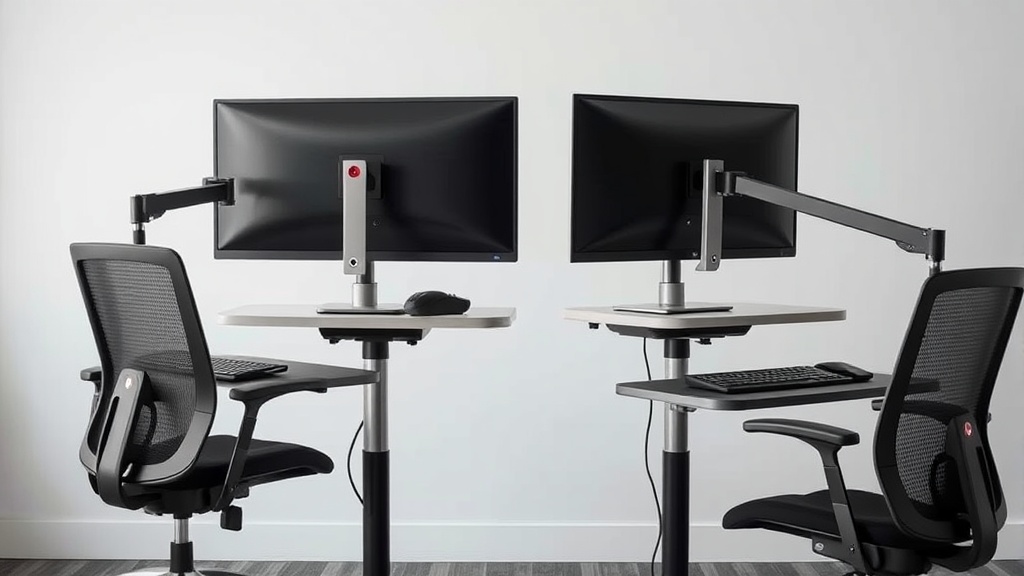
Many desk workers upgrading their ergonomic setup face the question: should I invest in a single monitor arm or go for dual monitor arms to improve the same workflow? While the appeal of dual arms sounds like instant productivity gains, the real challenge lies in fitting these solutions to your actual work habits, desk space, and ergonomic needs for sustained comfort over 8-hour workdays.
What Are Monitor Arms?
Monitor arms are adjustable mounts that replace fixed desktop stands, allowing you to position your monitor(s) flexibly in terms of height, distance, tilt, and rotation. Instead of being locked into one angle at desk level, arms enable dynamic postures and better sightlines, reducing neck and eye strain during long periods of computer use.
Single Monitor Arm
This adjustable arm holds exactly one monitor. It frees up desk space by removing the bulky monitor base and allows extensive positioning customization for that one display.
Dual Monitor Arms
A dual monitor arm setup uses either one arm designed for two screens or two separate arms to hold two monitors. This permits independent or coordinated adjustment of two displays side-by-side or stacked.
See also: 20. Ergotron LX vs Amazon Basics monitor arm: is the 5x price real?
How Do Single and Dual Monitor Arms Affect Your Workflow?
The choice between single and dual monitor arms is not just about how many screens you use but how those screens fit into your day-to-day work patterns, desk ergonomics, and comfort.
Seat Depth and Viewing Distance
The effective seat depth (how far you sit from your monitors) influences eye strain and focus. Single arms allow users to set an optimal viewing distance for the single screen, often easier to perfect for tasks centered on one primary application. Dual arms must accommodate two viewing distances or balance compromises, sometimes pushing one screen too far or pulling one too close.
Lumbar Adjustability and Posture
Because the monitor position directly affects how you sit (leaning forward, twisting), having independent vertical and horizontal adjustments for one or two screens supports better lumbar alignment. Dual monitor arms require greater attention to arm height and reach, as you pivot between screens, affecting back posture.
Armrest 4D Travel and Desk Setup
Proper armrest positioning (adjustment in height, depth, width, and angle) on your chair complements monitor setup by stabilizing forearms, reducing shoulder tension. Desk space freed by monitor arms might allow more armrest movement, but crowding dual arms plus input devices can limit this freedom.
Pressure-Mapping Insights
Pressure-mapping studies show uneven weight distribution on wrists and forearms when users constantly twist or reach for off-center monitors. Dual monitor arms pose a risk of more side-to-side strain unless configured for smooth transitions and balanced viewing angles. Single arms are simpler for focused tasks but may require more head turning if referencing multiple sources.
When to Use Single vs. Dual Monitor Arms: Choosing Based on Your Workflow
| Feature / Factor | Single Monitor Arm | Dual Monitor Arms | Best For / Considerations |
|---|---|---|---|
| Number of Screens | One monitor only | Two monitors typically side-by-side or stacked | Single for focused workflows; dual for multi-application or reference workflows |
| Desk Space Saved | Moderate space conservation | Greater space saved vs standard stands | Dual arms maximize desk real estate for larger or multiple displays |
| Adjustability | Full 4-6 DOF for one screen (height, tilt, swivel, rotation, extension) | Independent or linked adjustments for two screens | Dual arms allow customized angles for each monitor, good for multi-taskers |
| Viewing Comfort | Easier to optimize single focal distance | Requires balancing distances and angles | Single arms reduce head/neck rotation; dual arms increase movement potential |
| Posture Impact | Less twisting; encourages centered sitting posture | More twisting side to side | Dual arms need careful ergonomic setup to avoid strain |
| Input Devices Layout | Simpler layout, less crowding | Might lead to cramped keyboard and mouse space | Dual arms need thoughtful input device placement |
| Cost | Generally less expensive | Usually higher cost due to complexity | Budget may dictate choice; dual arms are often worth the cost if workflow demands |
| Setup Complexity | Simple installation and adjustment | More complex installation and balancing | Single arms are easy beginner upgrade; dual arms require calibration for comfort |
| Ideal Usage Scenario | Single-app focused work (coding, writing) | Multi-window reference, multitasking (finance, design, trading) | Match arm choice to dominant work tasks and monitor use |
Common Pitfalls to Avoid with Monitor Arms
- Ignoring Seat Depth: Moving monitors too close or too far affects neck and eye comfort. Use incremental adjustments and test for prolonged comfort.
- Poor Lumbar Support: Adjust your chair’s lumbar support alongside monitor position. Ergonomics is holistic.
- Static Setup: A monitor arm is meant to be adjusted dynamically. Fixing positions rigidly defeats benefits.
- Overcrowding Desk Area: Dual monitor arms plus keyboard, mouse, and armrests need careful real estate planning.
- Assuming Marketing Claims Translate to All-Day Comfort: Marketing often shows perfect setups, but real workflows involve leaning, reading angles, multiple software usage — adjust accordingly.
How to Maximize Ergonomics Regardless of Arm Choice
- Measure Your Seat Depth and Monitor Distance: Aim for approximately an arm’s length distance between your eyes and the monitor; adjust for smaller fonts or detailed work.
- Choose Arms with Wide Range Lumbar and Height Adjustment: This supports healthy posture throughout your work hours.
- Ensure Armrests Have 4D Adjustability: Supported forearms reduce shoulder and neck tension when moving between screens.
- Use Pressure-Mapping or Self-Assessment Tools: Pinpoint areas where you experience strain to refine monitor position.
- Regularly Reassess Setup: Your work intensity and the applications you use may change; be willing to recalibrate your monitor and seating arrangement.
Frequently Asked Questions
Q: Can I use a dual monitor arm if one monitor is larger than the other?
A: Yes, but make sure the arms support independent height and tilt adjustment to customize positioning and avoid strain caused by mismatched monitor sizes.
Q: Is it worth purchasing a dual monitor arm if I only use two screens occasionally?
A: If your workflow involves frequent side-by-side monitoring or reference checking, a dual arm improves comfort and productivity. For occasional use, a single arm with occasional monitor repositioning may suffice.
Q: How do I avoid neck pain with dual monitors?
A: Position the primary monitor directly in front and the secondary monitor at a slight angle to minimize head turns. Experiment with chair and armrest adjustments to maintain neutral posture.
Choosing between a single and dual monitor arm hinges on matching ergonomic principles to your unique workflow. While dual setups can enhance multi-tasking, they require fine-tuning to avoid postural pitfalls and maintain long-term comfort. Prioritize adjustability, measured fit, and thoughtful desk layout to harness the real benefits beyond marketing hype.
